
Instant Win
Instant Win lets you attach prizes to specific ticket numbers. When a customer buys a ticket and their number matches a winning number, they win immediately — no waiting for the draw date. Think of it like a scratch card built into your raffle.
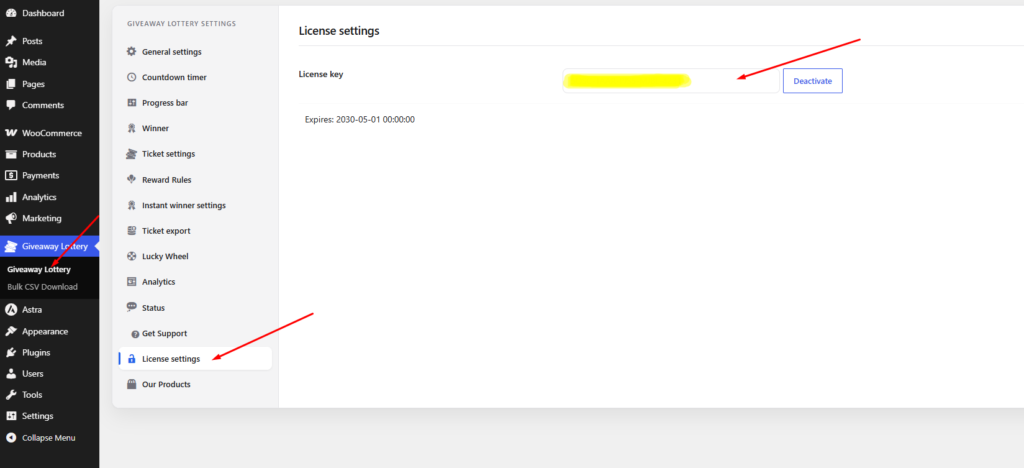
Requires Pro license: Instant Win is a Pro feature. Install Giveaway Lottery Pro and activate your license before setting this up. Go to Giveaway Lottery → License settings to enter your license key.
How Instant Win Works
- You configure winning ticket numbers and prizes on a giveaway product.
- A customer buys tickets normally through checkout.
- When tickets are generated, the system checks if any match a winning number.
- If yes — the customer sees an instant win message and receives their prize (coupon, free product, points, etc.).
- If no — they still have their tickets for the main draw.
Step-by-Step: Set Up Instant Win
Part A — Enable Instant Win Globally
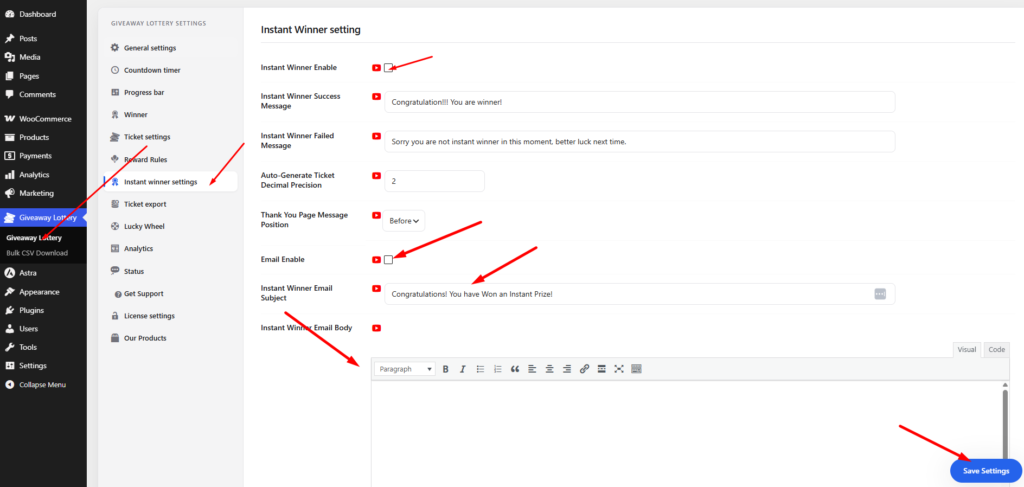
- Go to Giveaway Lottery.
- Click the Instant winner tab.
- Check Enable Instant Winner.
- Configure display options:
- Show instant win results on product page
- Show winner list tab on product page
- Customize tab labels and messages
- Save changes.
Part B — Configure Prizes on a Giveaway Product
- Go to Products → Edit your giveaway product (must have “Is it a single giveaway?” checked).
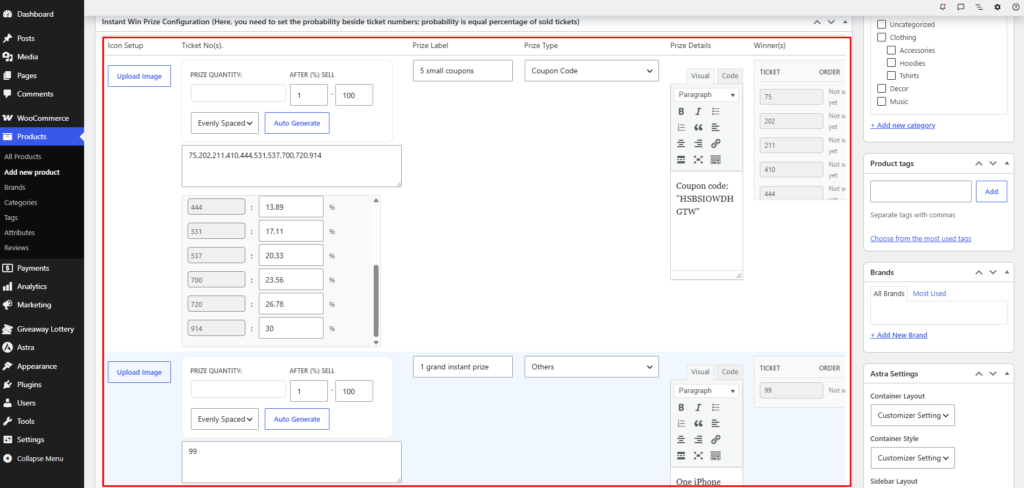
- Scroll down to the Instant Win Prize Configuration section (Metabox).
- Click Add Prize to create a new instant win prize.
- For each prize, configure:
- Prize name — e.g., “Free $20 Coupon”, “Bonus Free Ticket”
- Prize type:
- Coupon Code — Auto-generates or uses a specific coupon
- Free Ticket — Extra entries for this or another giveaway
- Reward Points — Points added to customer account
- Self Site Product(s) — Free WooCommerce product from your store
- Gift card / Store card (self site) — Requires Gift Card plugin
- 3rd Party Site Product(s) — External prize with custom instructions
- Gift card (3rd party site) — External gift card
- Others — Custom prize with your message
- Winning ticket numbers — Enter specific numbers OR use Auto-generate to spread winning numbers evenly across the ticket range
- Quantity available — How many of this prize can be won
- Prize icon — Optional image shown on the product page
- Add as many prizes as you want (e.g., 5 small coupons, 2 free products, 1 grand instant prize).
- Click Update to save the product.
Part C — Auto-Generate Winning Ticket Numbers
Instead of manually picking ticket numbers, use the auto-generate tool:
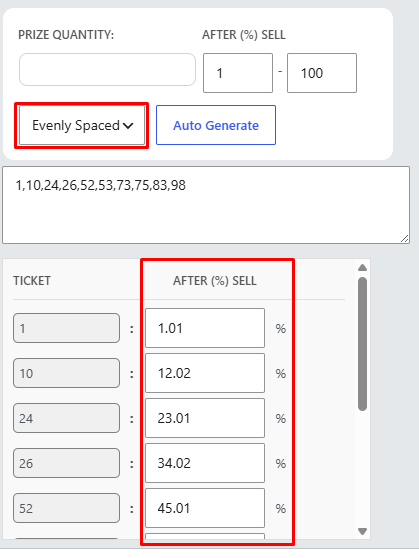
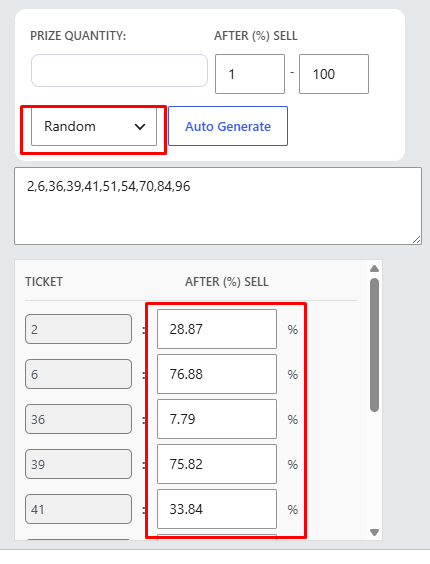
- In the Instant Win Prize Configuration, click Auto Generate.
- Choose distribution method:
- Evenly spaced — Winning numbers spread evenly (e.g., every 500th ticket)
- Random — Randomly placed winning numbers
- Enter how many winning tickets you want for this prize.
- Click generate — the system assigns numbers from the product’s ticket range.
Part D — What the Customer Sees
After purchasing tickets:
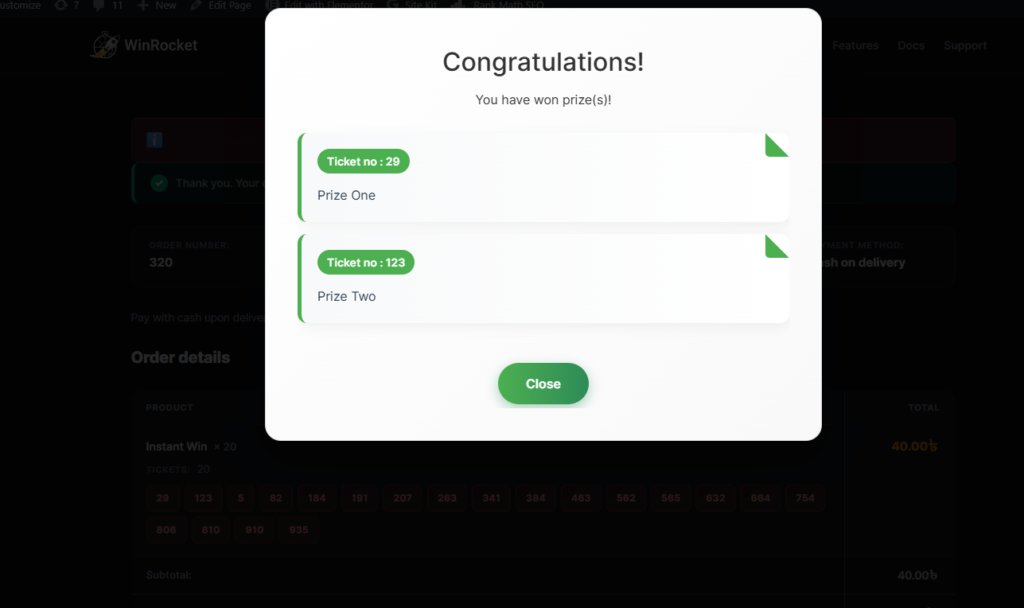
- On the Thank You page — Instant win notification appears if they won
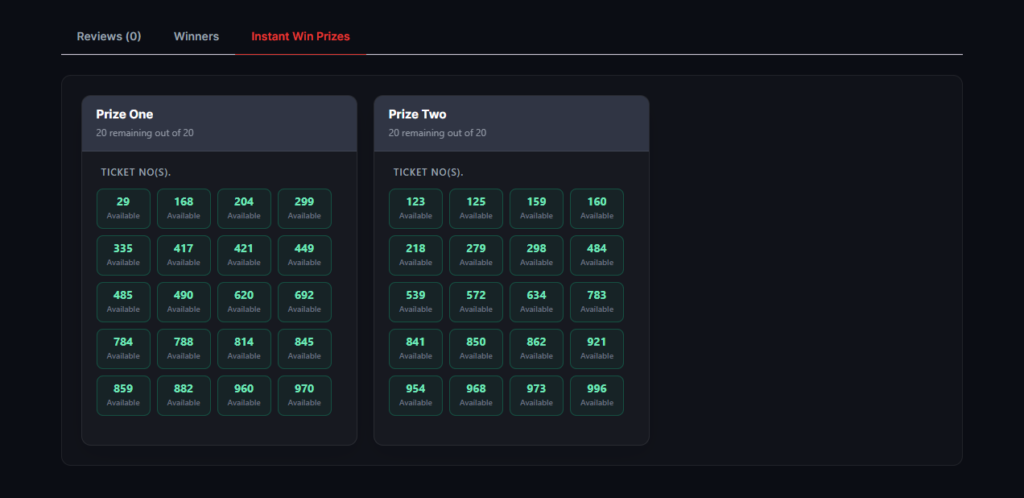
- On the Product page — Instant Win tab shows available prizes and recent winners
- By Email — Winner receives prize details; non-winners may get a “better luck next time” message
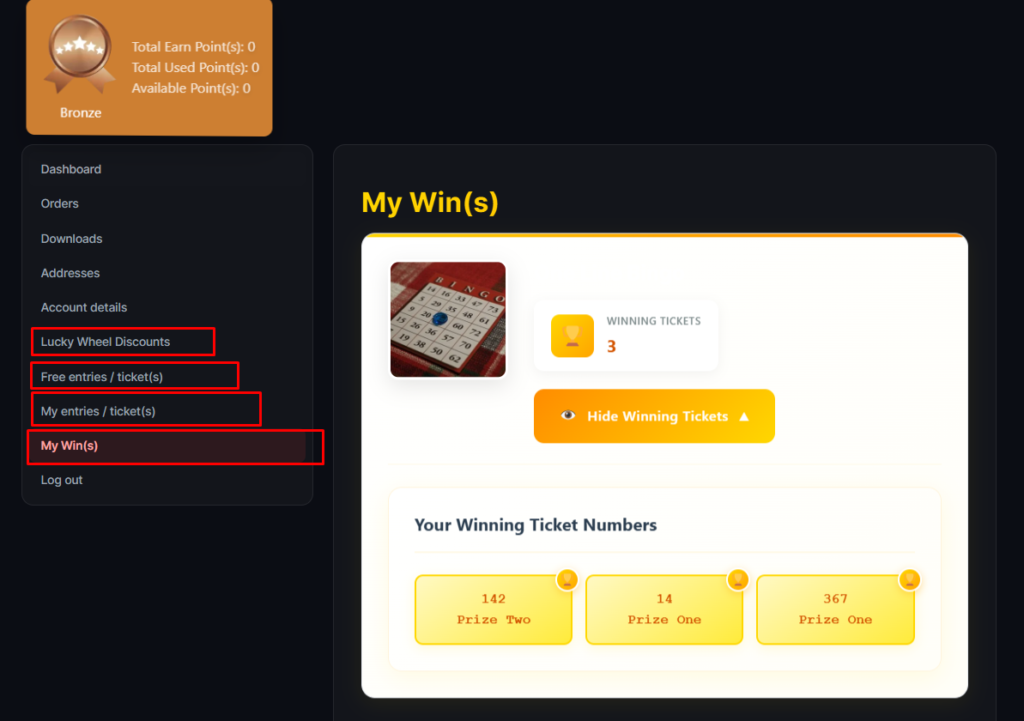
- In My Account → My Win(s) — All instant wins listed
Part E — Ticket Checker Shortcode
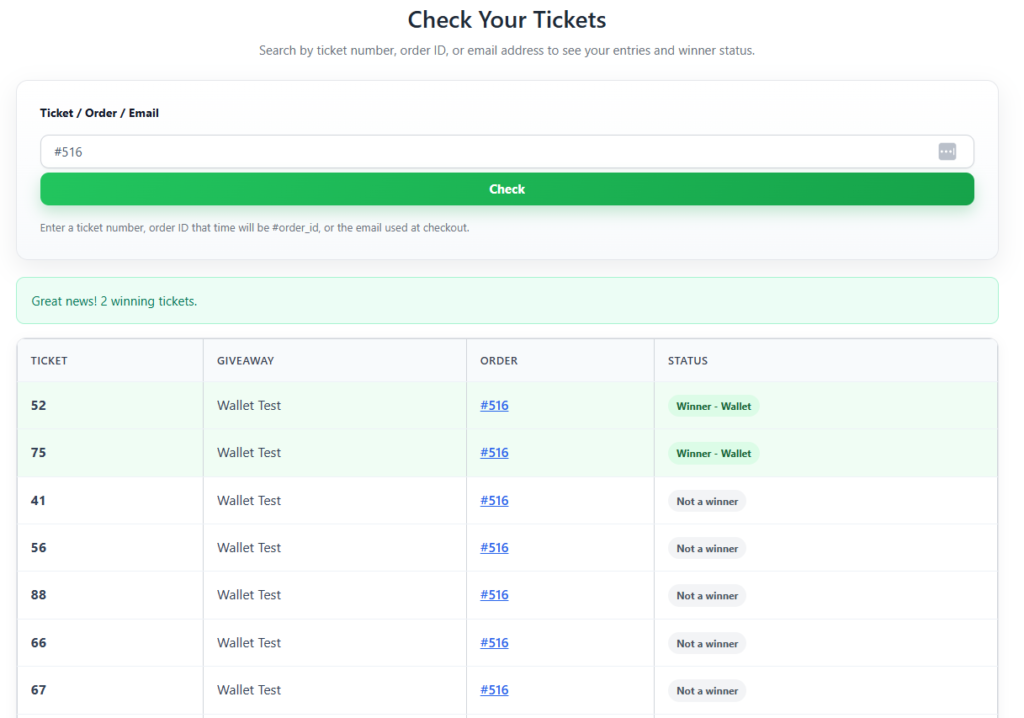
Let customers check if their ticket is a winner without logging in:
- Create a page (e.g., “Check Your Ticket”).
- Add shortcode:
[ticket_checker] - Customers enter their ticket number and see instant win status.
Maintenance tip: If instant win results seem incorrect after changing prizes, go to Giveaway Lottery → Status tab and click Rebuild all instant-win indexes.