

Lucky Wheel (Addon)
The Lucky Wheel addon extends the built-in Lucky Wheel that comes with Giveaway Lottery. Where the core wheel gives you one site-wide wheel for cart and checkout, this addon lets you build unlimited wheels, assign a specific wheel to any product, and show a spin experience on the order thank-you page after a customer buys. Each spin can award coupons, free tickets, reward points, products, and more.
Requires: WooCommerce, the free Giveaway Lottery plugin, and its core Lucky Wheel feature. Products that have an addon wheel assigned are treated as a Pro feature — Giveaway Lottery Pro with an active license is required for customers to purchase them.
What This Addon Adds Over the Core Wheel
| Capability | Core Lucky Wheel | Lucky Wheel Addon |
| Single site-wide wheel | Yes | — (uses core) |
| Cart / checkout wheel bubble | Yes | — (uses core) |
Core shortcode [wcs_lucky_wheel] | Yes | — (uses core) |
| Unlimited saved wheels | — | Yes |
| Assign a wheel to a specific product | — | Yes |
| Spin on the order thank-you page | — | Yes |
Per-wheel shortcode [gew_lucky_wheel] | — | Yes |
| Spins based on order quantity / tickets | — | Yes |
How It Works
- You create one or more wheels in the new Lucky Wheels manager, each with its own slices and appearance.
- You assign a wheel to a giveaway (or normal) product and set how many spins each purchased quantity earns.
- A customer buys the product. When the order reaches your ticket-generating status, their spins are calculated and stored.
- On the thank-you page (and the order view page), the customer spins the assigned wheel and instantly sees what they won.
- Winners are logged to the addon’s Extended Lucky Wheel Winners report.
Step-by-Step: Set Up the Lucky Wheel Addon
Part A — Create a Wheel
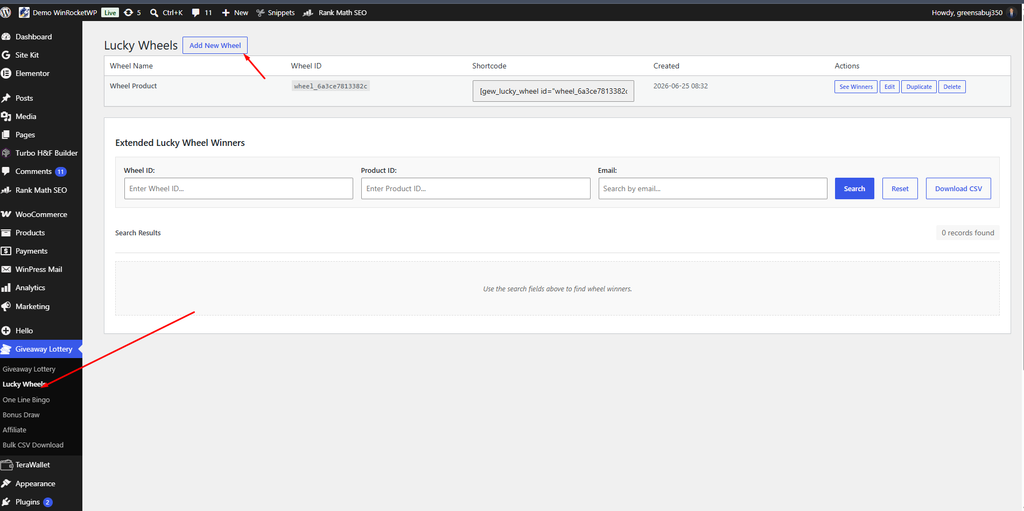
- Go to Giveaway Lottery → Lucky Wheels.
- Click Add New Wheel.
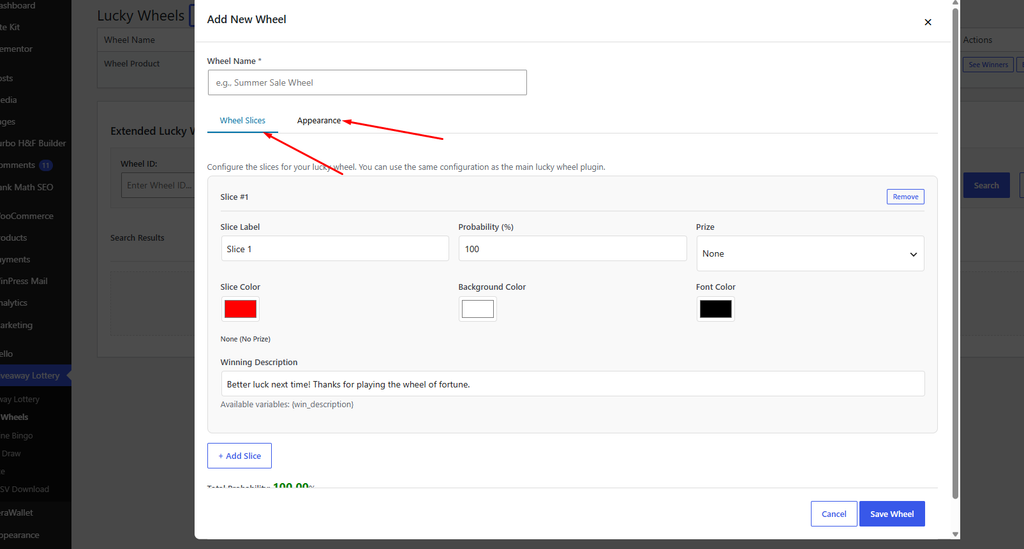
- Enter a Wheel Name (e.g. “Summer Sale Wheel”).
- On the Wheel Slices tab, click + Add Slice for each prize. For every slice set:
- Slice Label — text shown on the wheel
- Probability (%) — chance of landing on this slice (watch the Total Probability readout)
- Prize — choose from None, New Coupon, Existing Coupon, Ticket / Entries, Reward Points, Products, or Others
- Prize-specific fields (e.g. discount type/amount/expiry for coupons, ticket quantity and giveaway for tickets)
- Winning Description — the message the winner sees
- Slice colors
- On the Appearance tab, set Background Color, Font Color, Pointer Color, Center Color, and Rotation Duration (seconds).
- Click Save Wheel.
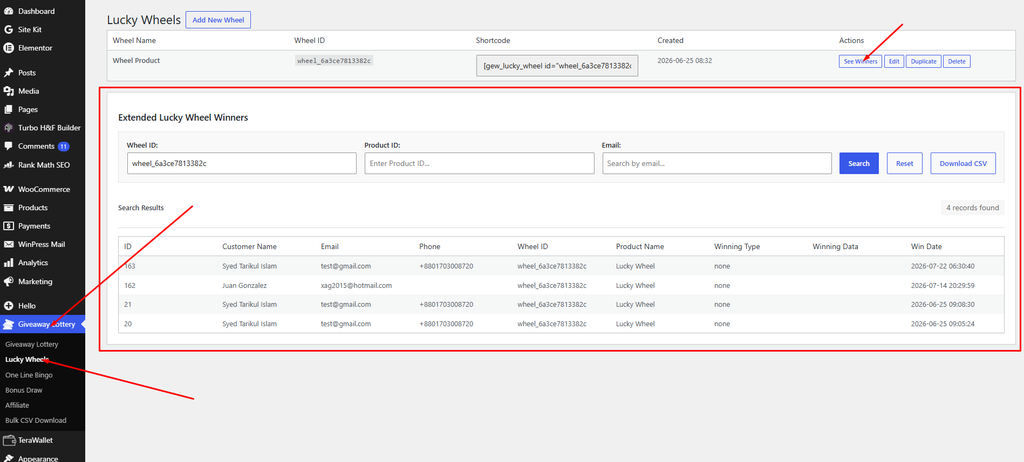
You can Edit, Duplicate, Delete, or See Winners for any wheel from the list. Each wheel row also shows a ready-to-copy shortcode.
Part B — Assign a Wheel to a Product
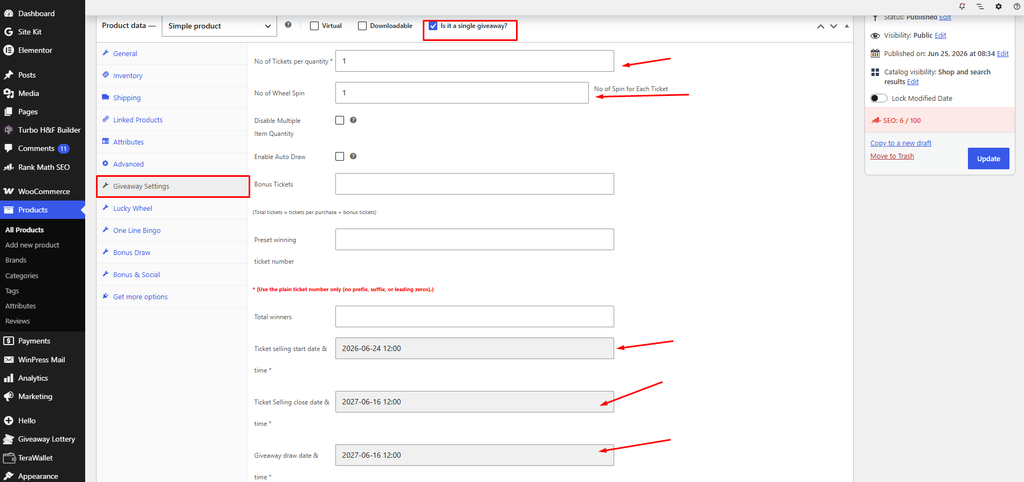
- Go to Products → Edit your product.
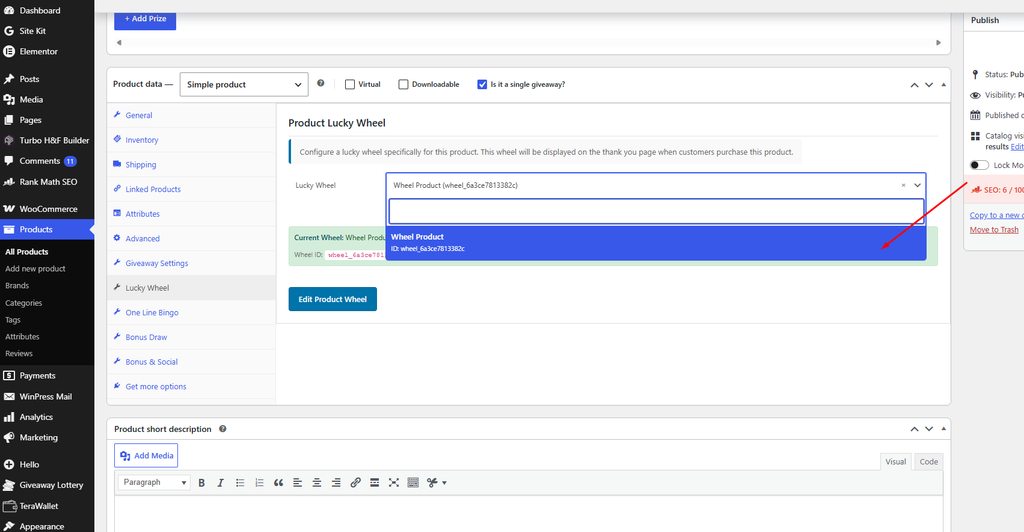
- In the Product data panel, open the Lucky Wheel tab.
- Under Product Lucky Wheel, choose a wheel in the Lucky Wheel selector (or Create New Wheel to build one inline).
- Set No of Wheel Spin — the number of spins per purchased quantity.
- Click Update to save the product.
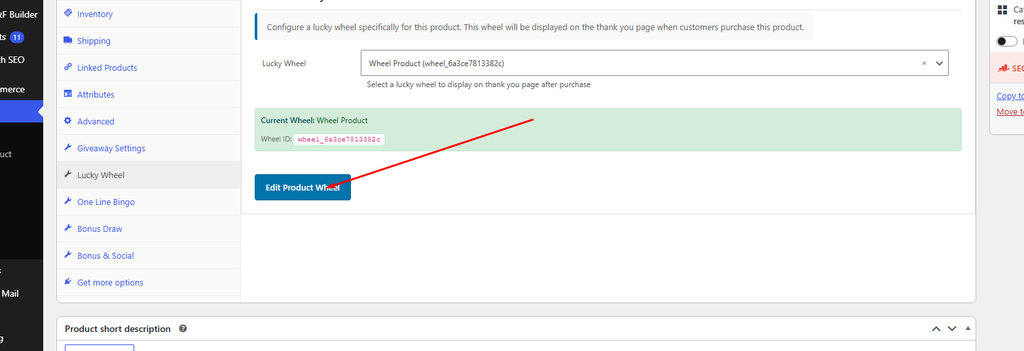
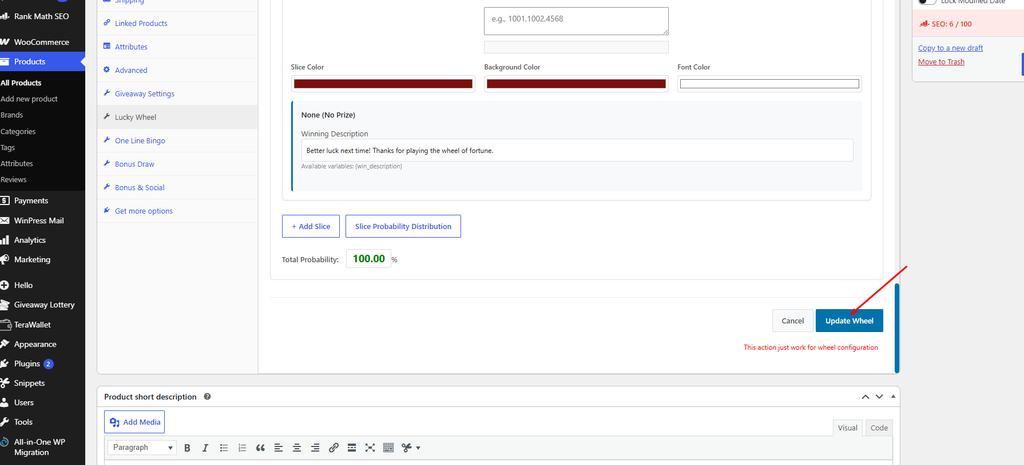
Part C — Choose the Thank-You Page Position
The add-on unlocks a placement setting inside the core wheel settings:
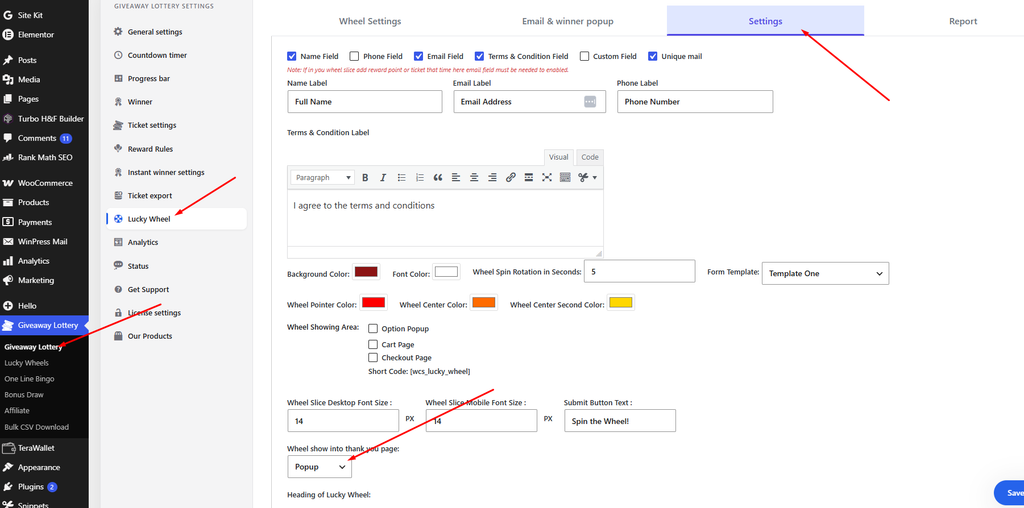
- Go to Giveaway Lottery → Lucky Wheel → Settings.
- Set Wheel show on thank-you page to Popup, Before, or After (order details).
- Save changes.
How Spins Are Calculated
When the order reaches a ticket-generating status:
- Giveaway product with tickets: spins = No of Wheel Spin × quantity × tickets per order
- Regular product: spins = No of Wheel Spin × quantity
View Lucky Wheel Addon Reports
Go to Giveaway Lottery → Lucky Wheels and scroll to Extended Lucky Wheel Winners. Filter by Wheel ID, Product ID, or Email, and click Download CSV to export. Winners from ticket-number probability draws are also recorded in the core winner list. (Winners from the core site-wide wheel still appear under Giveaway Lottery → Lucky Wheel → Report.)
Emails
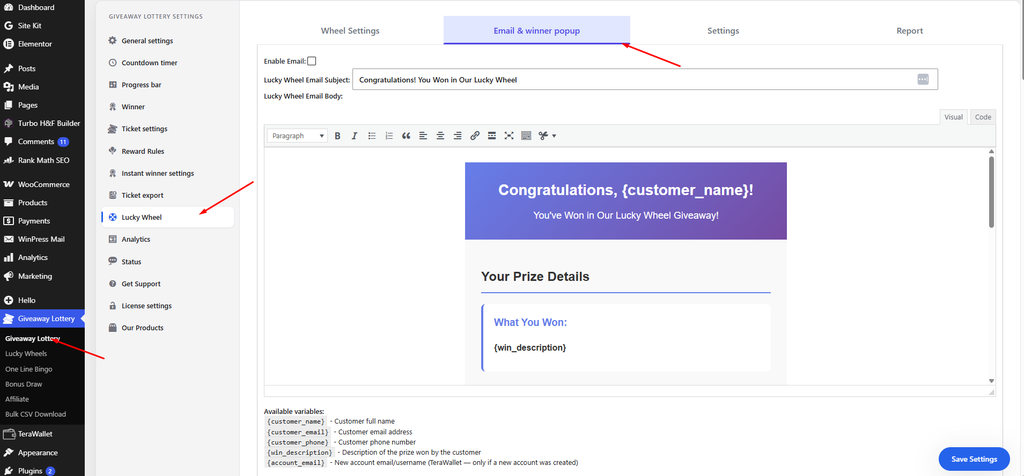
Winner, non-winner, and admin emails for wheel spins are configured in the core wheel settings under Giveaway Lottery → Lucky Wheel → Email & winner popup.
Pro tip: Use a high-probability “Try again” or small-coupon slice and reserve big prizes for low-probability slices — post-purchase spins feel rewarding without eroding your margins.