
Affiliate
The Affiliate addon rewards customers who bring new ticket buyers to your giveaways. Each customer gets a personal referral link, and when someone buys through it, the referrer earns bonus giveaway tickets and/or reward points automatically. It is word-of-mouth marketing built directly into your raffle.
Requires: WooCommerce and the free Giveaway Lottery plugin. Customers must be logged in to generate and share affiliate links (guest orders do not create links). No separate license key is needed for this addon.
How Referrers Are Rewarded
Rewards are set per giveaway product. A successful referral can grant:
- Bonus giveaway tickets — extra entries for the referrer.
- Reward points — points added to the customer’s WinRocket reward balance (usable like coupons in the main plugin).
There is no cash commission and no coupon code — attribution is handled by a referral link and cookie.
The Three Referral Modes
You can enable any combination of these modes.
| Mode | Setting | How the link is shared | How the referrer is rewarded |
| After order complete | Enable Affiliate Program After Order Complete | A unique link per purchased product, shown on the order and in My Account | Bonus tickets are added to the referrer’s original order |
| Single product page | Enable Affiliate Program into Single Product Page | A share box on the giveaway product page | A 100% free bonus order is created for the referrer |
| Whole site | Enable Affiliate Program Whole Site for Giveaway Products | A site-wide link via the [agl_affiliate_link] shortcode | A 100% free bonus order is created for the referrer |
How It Works
- You enable the affiliate program and one or more modes, then enable affiliate rewards on your giveaway product(s).
- A logged-in customer gets a referral link (from their order, the product page, or the shortcode box).
- A friend clicks the link — a tracking cookie (
agl_ref_token) is stored for the configured number of days. - The friend buys the giveaway product. When their order reaches the ticket-generating status, the referrer is rewarded.
- Self-referrals are blocked, and if the referred order is cancelled or refunded, the bonus is automatically reversed.
Step-by-Step: Set Up Affiliate
Part A — Configure the Affiliate Program
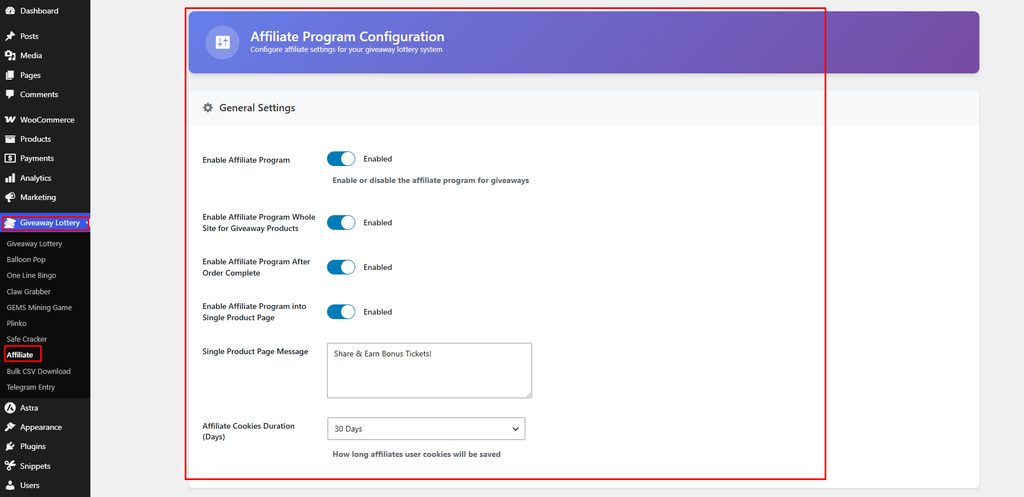
- Go to Giveaway Lottery → Affiliate.
- Turn on Enable Affiliate Program (master switch).
- Enable one or more modes:
- Enable Affiliate Program After Order Complete
- Enable Affiliate Program into Single Product Page
- Enable Affiliate Program Whole Site for Giveaway Products
- Set Single Product Page Message — the headline shown in the share box (default: “Share & Earn Bonus Tickets!”).
- Set Affiliate Cookies Duration (Days) — how long a referral is remembered: 15, 30, 60, 90, 180, or 365 days (default 30).
- Click Save Settings.
Part B — Enable Rewards on a Giveaway Product
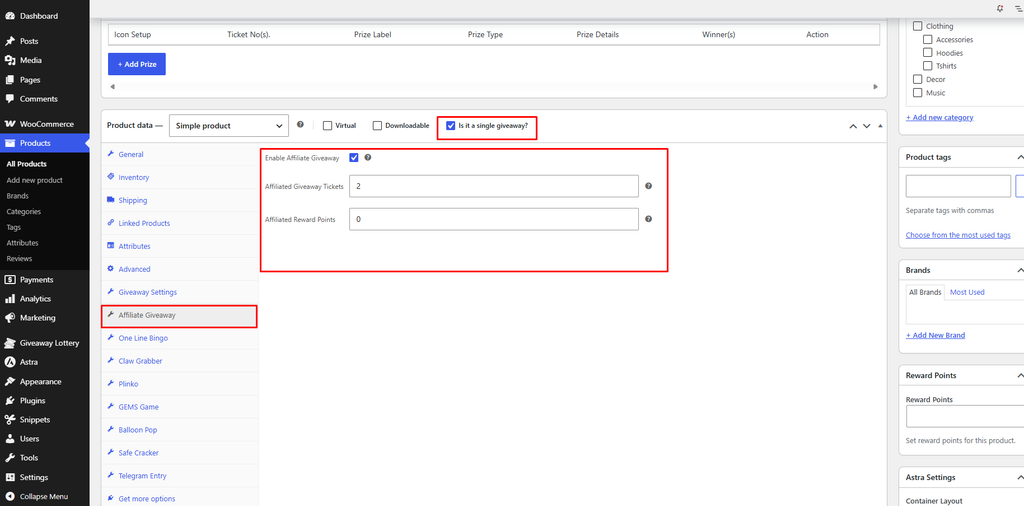
- Go to Products → Edit your giveaway product.
- In the Product data panel, open the Affiliate Giveaway tab.
- Tick Enable Affiliate Giveaway.
- Set the reward amounts:
- Affiliated Giveaway Tickets — bonus tickets awarded per successful referral (0 = none).
- Affiliated Reward Points — points awarded per successful referral (0 = none).
- Click Update to save the product.
Part C — Set Up Affiliate Emails
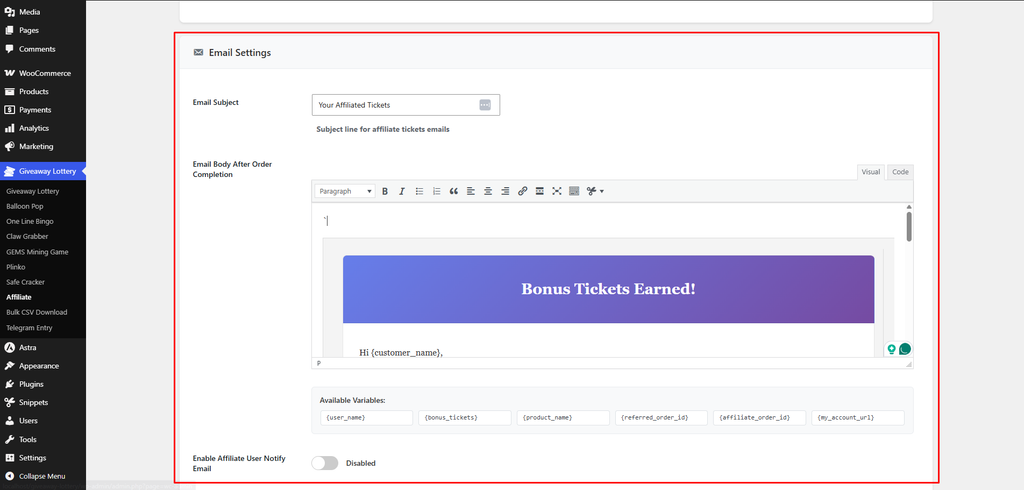
Open the Email Settings section of the Affiliate page to customize notifications:
- Email Subject — subject line for the bonus-ticket email (default: “Your Affiliated Tickets”).
- Email Body After Order Completion — template for the order-based bonus email. Placeholders:
{user_name},{bonus_tickets},{product_name},{referred_order_id},{affiliate_order_id},{my_account_url}. - Enable Affiliate User Notify Email — send an email when a bonus (free) order is created. Body placeholders:
{user_name},{bonus_order_id},{referral_order_id},{bonus_tickets},{bonus_order_url}. - Enable Removed Ticket Notify Email, Removed Email Subject, Removed Email Body — notify a referrer when a reversed referral removes their bonus tickets (placeholders:
{ticket_list_count},{ticket_list}).
Part D — Place the Whole-Site Share Box (Optional)
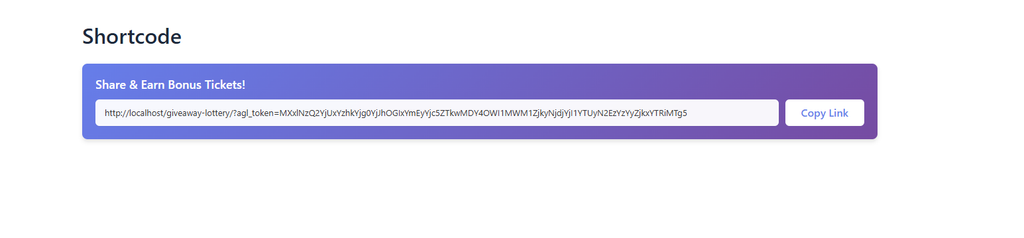
For the whole-site mode, add this shortcode to any page or post to show a logged-in customer their site-wide referral link:
[agl_affiliate_link]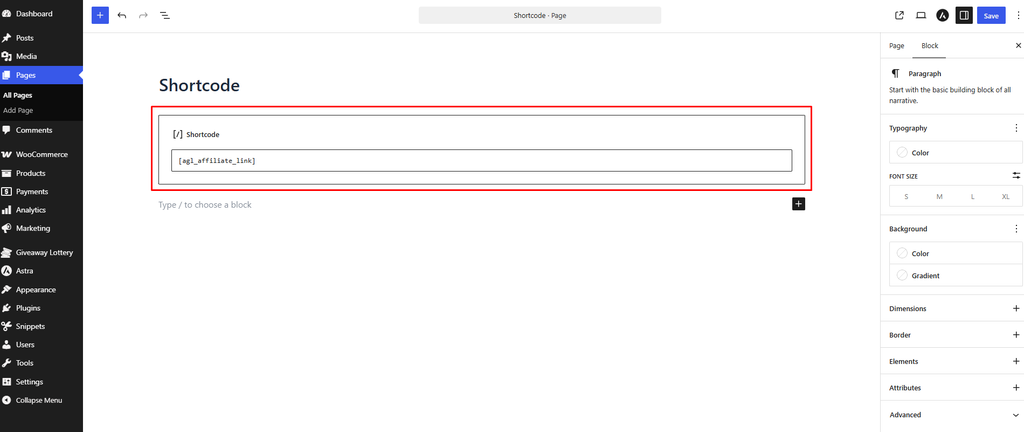
What the Customer Sees
- On the order page (after order mode) — a “Your Affiliate Links” section with copy and share buttons (WhatsApp, Facebook, Twitter, Email).
- On the product page (single product mode) — a share box with their referral link and a “Copy Link” button.
- In My Account → Affiliate Links — a dashboard titled “My Affiliate Links” with summary cards (Active Links, Total Referrals, Tickets Earned, Reward Points) and a table of each link’s referrals, tickets earned, ticket numbers, points, and share buttons.
Reversal Protection
If a referred order is cancelled, refunded, or fails:
- Order-mode bonus tickets are removed from the referrer’s order and stats are rolled back.
- Product / whole-site bonus orders are cancelled.
- Any reward points granted for the referral are subtracted.
Pro tip: Combine the “After order complete” mode with a small reward-point bonus so every buyer instantly becomes a promoter — they already own tickets, so sharing to boost their own odds feels natural.