

Email Marketing (WinPress Mail)
The Email Marketing addon lets you send scheduled email campaigns to your WooCommerce customers, right from WordPress. It is giveaway-aware: you can send launch announcements, “last chance” reminders to people who haven’t entered, and draw-date reminders to people who have. Every send is batched, tracked for opens and clicks, and respects unsubscribes.
Requires: WooCommerce (subscriber campaigns work with WooCommerce alone). The free Giveaway Lottery plugin is required only for the giveaway campaign types. Email delivery uses your site’s normal WordPress mail system — for reliable inboxing, use an SMTP plugin. No separate license key is needed.
The Workflow
Create a template → Create a campaign (type + audience + template + schedule) → Automatic batch send → Track results
Where to Find It
The addon adds a top-level WinPress Mail menu with these pages:
- Dashboard — totals and quick links
- Campaigns — your campaign list
- Add Campaign — new campaign form
- Templates — email templates
- Unsubscribed — global opt-out list
- Settings — sender details and batch size
Campaign Types
| Campaign type | Who receives it | Scheduling |
| Subscriber campaign | All WooCommerce customers | Fixed date & time you pick |
| Giveaway start reminder | All WooCommerce customers | Based on the giveaway’s start date minus your lead time |
| Giveaway close reminder (non-purchasers) | Customers who have not bought the giveaway product | Based on the close date minus lead time |
| Draw date reminder (purchasers) | Customers who have bought the giveaway product | Based on the draw date minus lead time |
Step-by-Step: Send Your First Campaign
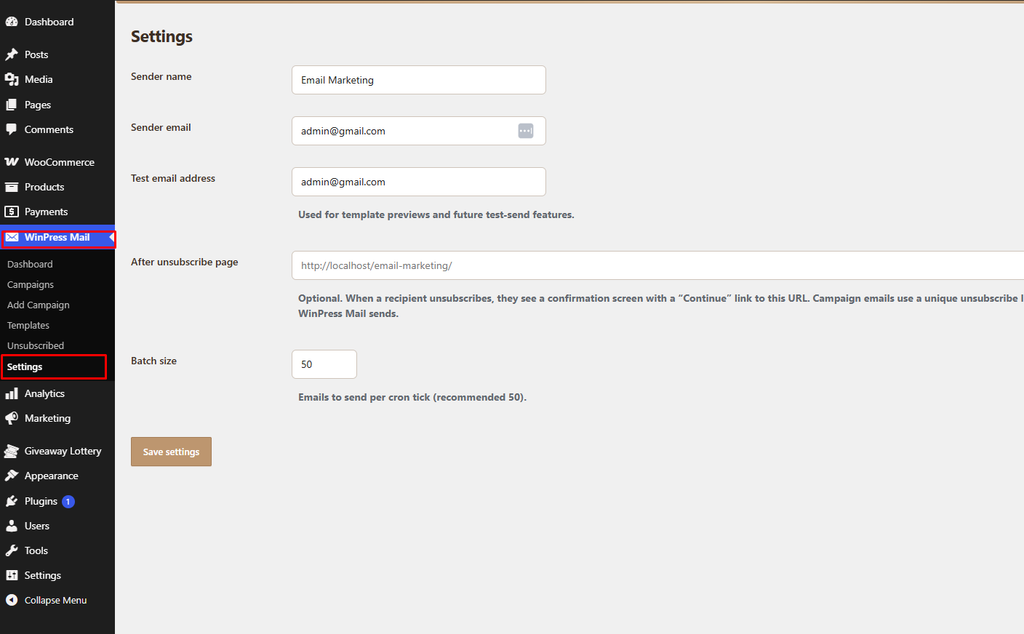
Part A — Configure Settings
- Go to WinPress Mail → Settings.
- Set:
- Sender name — the “From” name (defaults to your site name)
- Sender email — the “From” address (defaults to admin email)
- Test email address — used for template previews
- After unsubscribe page — optional URL to send people to after they opt out
- Batch size — emails sent per minute (default 50, max 200)
- Click Save settings.
Part B — Create an Email Template
- Go to WinPress Mail → Templates.
- Use a built-in default (Classic Blue, Amber Promo, Dark Luxury, Green Eco) or click to create a custom template.
- Set the Template name, Email subject, and HTML body.
- Insert merge tags where you want dynamic content (see the merge tag list below).
- Click Create template / Save template. Default templates can be copied to a custom one with Copy to custom.
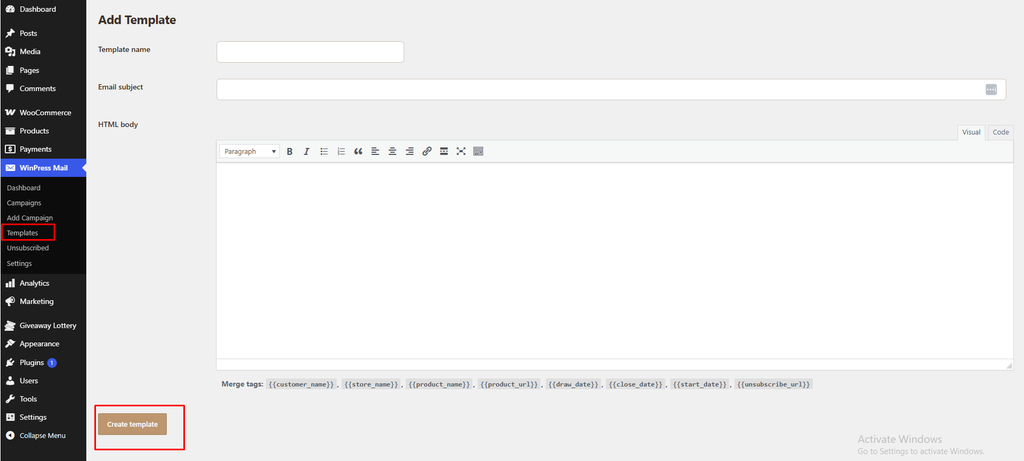
Merge tags (use double curly braces):
| Merge tag | Replaced with |
| {{customer_name}} | The customer’s name |
| {{store_name}} | Your site name |
| {{product_name}} | The linked giveaway/product name |
| {{product_url}} | The product link |
| {{start_date}} | The giveaway start date |
| {{close_date}} | The giveaway close date |
| {{draw_date}} | The giveaway draw date |
| {{unsubscribe_url}} | The recipient’s unsubscribe link |
Part C — Create a Campaign
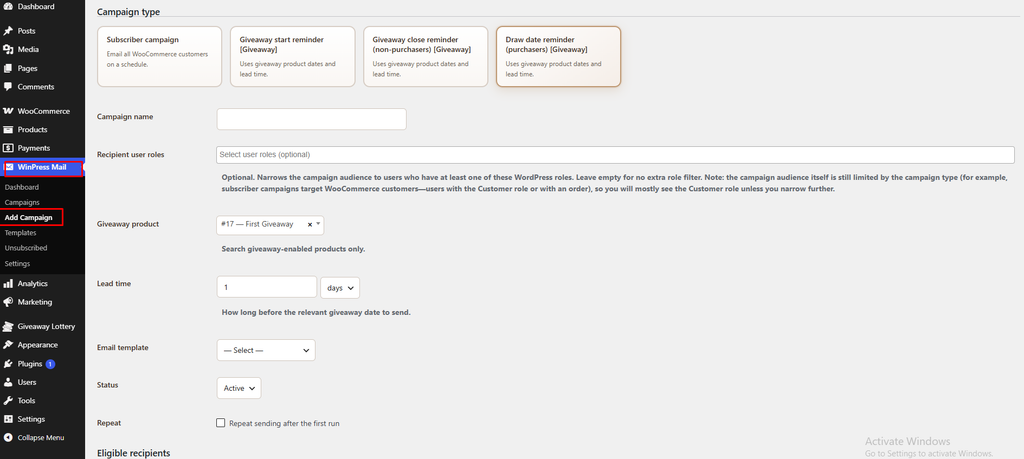
- Go to WinPress Mail → Add Campaign.
- Choose a Campaign type.
- Fill in the fields:
- Campaign name
- Recipient user roles — optional filter to specific WordPress roles
- Send date & time — for subscriber campaigns
- Giveaway product + Lead time (hours/days) — for giveaway campaigns
- Email template
- Status — Active or Paused
- Repeat — optionally repeat the send, with Additional sends and an Interval
- Optionally click Load eligible recipients to preview the audience, filter by email, and Remove anyone you want to exclude.
- Click Save campaign.
Part D — How Sending Works
- A background task runs every minute and processes Active campaigns whose send time has arrived.
- Emails go out in batches (your Batch size) using WordPress mail.
- Unsubscribed addresses are always excluded.
- When the queue is empty, the campaign either repeats (if configured) or is marked Completed.
Tracking & Analytics
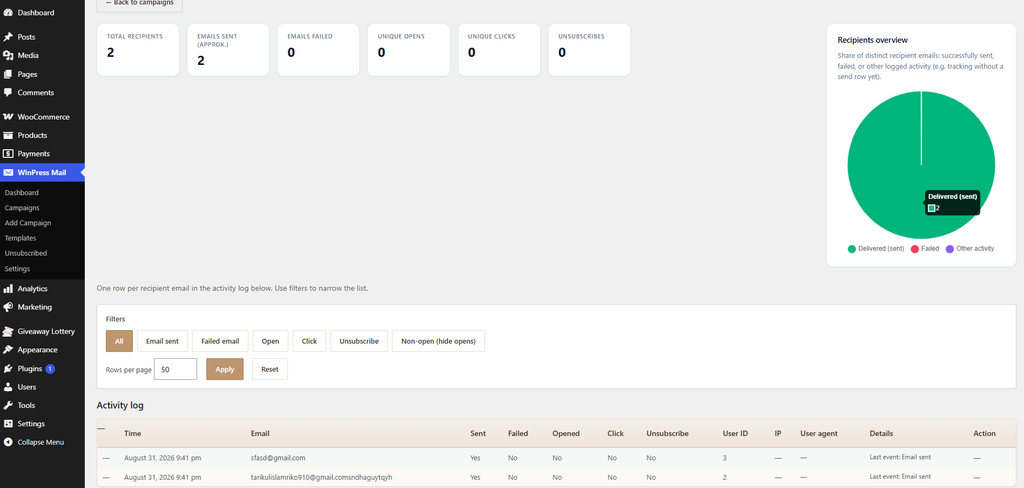
Open a campaign’s Analytics page to see:
- KPI cards: Total recipients, Emails sent, Emails failed, Unique opens, Unique clicks, Unsubscribes.
- A Recipients overview pie chart (Delivered / Failed / Other activity).
- Filter buttons (All, Email sent, Failed, Open, Click, Unsubscribe, Non-open) over a per-recipient activity log.
- A Send now action on failed rows and a bulk Resend selected (failed) option.
Open and click tracking are always on for campaigns. Recipients who click their unsubscribe link are added to WinPress Mail → Unsubscribed and excluded from all future sends.
Notes:
- The menu is named WinPress Mail.
- The “draw date reminder” targets everyone who purchased the giveaway product (not only confirmed winners).
- There is no built-in SMTP — deliverability depends on how your site sends WordPress email.
Pro tip: Pair a close reminder to non-purchasers (sent 24 hours before sales end) with a draw reminder to purchasers (sent an hour before the draw). The first recovers lost sales; the second brings buyers back to watch the reveal.