

Free Campaign / Instant Checkout
A Free Campaign lets people enter your giveaway without paying or going through normal WooCommerce checkout. It is perfect for:
- Free raffle contests to grow your email list
- Newsletter signup campaigns with a chance to win
- Social media giveaways where entry should be quick and easy
- Building your audience before launching a paid raffle
How it differs from a paid giveaway: Instead of “Add to Cart” and checkout, visitors see a simple form (Name + Email, or Name + Phone + Email). They submit the form and receive free tickets instantly — no payment required.
Step-by-Step: Create a Free Campaign
Part A — Create the Free Giveaway Product
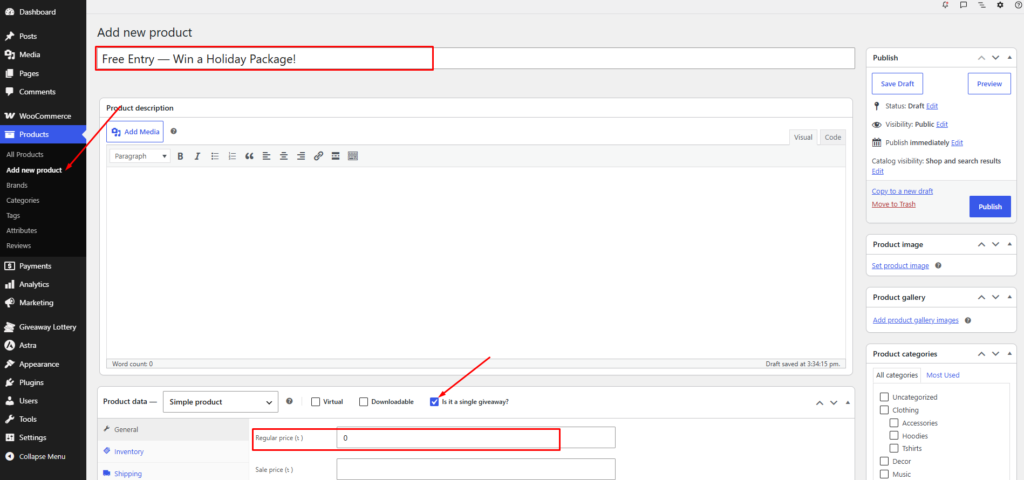
- Go to Products → Add New.
- Enter a product name (e.g., “Free Entry — Win a Holiday Package!”).
- Set the Regular price to $0 (zero). This is a free entry campaign.
- Check “Is it a single giveaway?” in Product data.
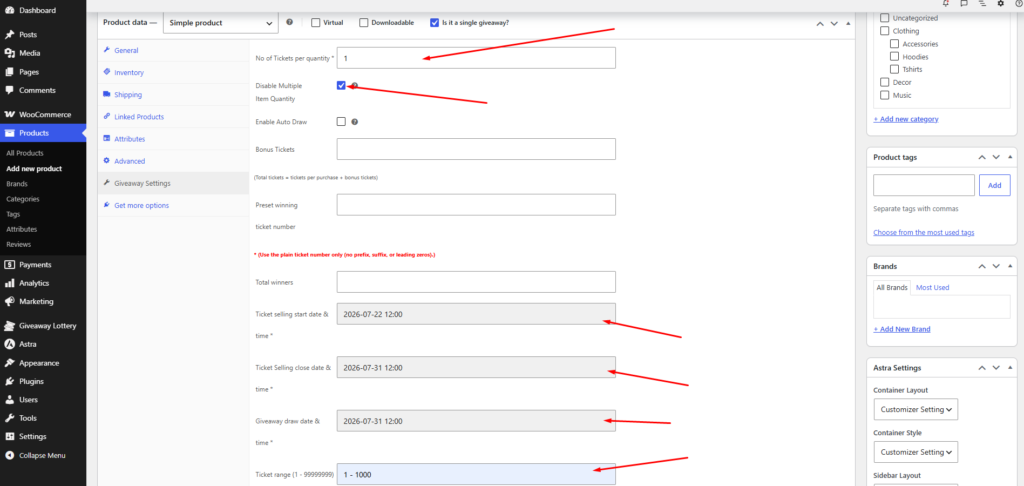
- Go to the Giveaway Settings tab and fill in:
- No of Tickets per quantity — Usually
1(one free ticket per entry) - Disable Multiple Item Quantity — After enabling it, the customer cannot purchase multiple items.
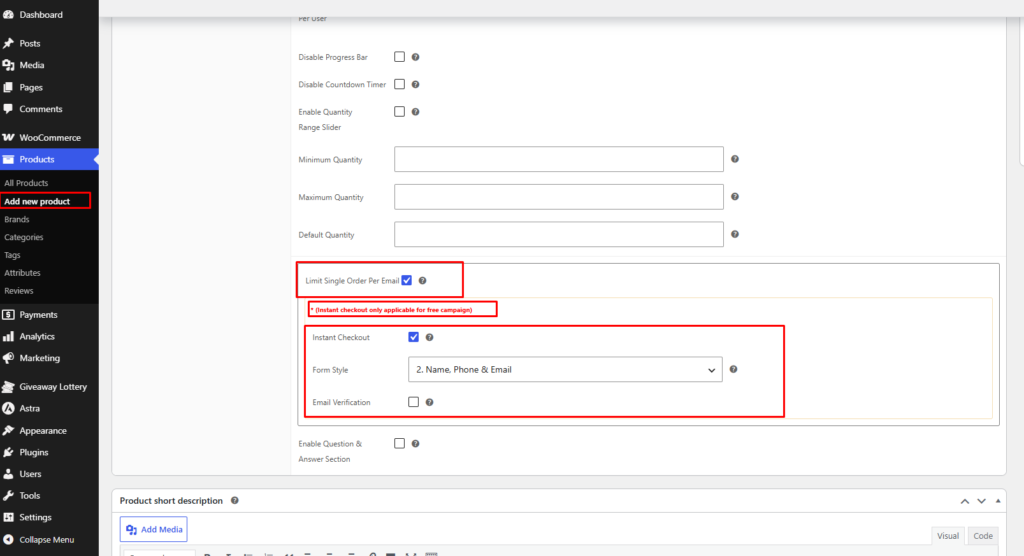
- Limit Single Order Per Email — After enabling it, the customer cannot purchase multiple time; one email can purchase one time.
- Start date, close date, and draw date
- Ticket range (e.g.,
1-10000)
- No of Tickets per quantity — Usually
- Enable Instant Checkout PRO — This replaces the normal purchase button with the entry form.
Note in the plugin: “Instant checkout only applicable for free campaign.” - Choose Form Style:
- Name & Email — Simple two-field form
- Name, Phone & Email — Collects phone number too
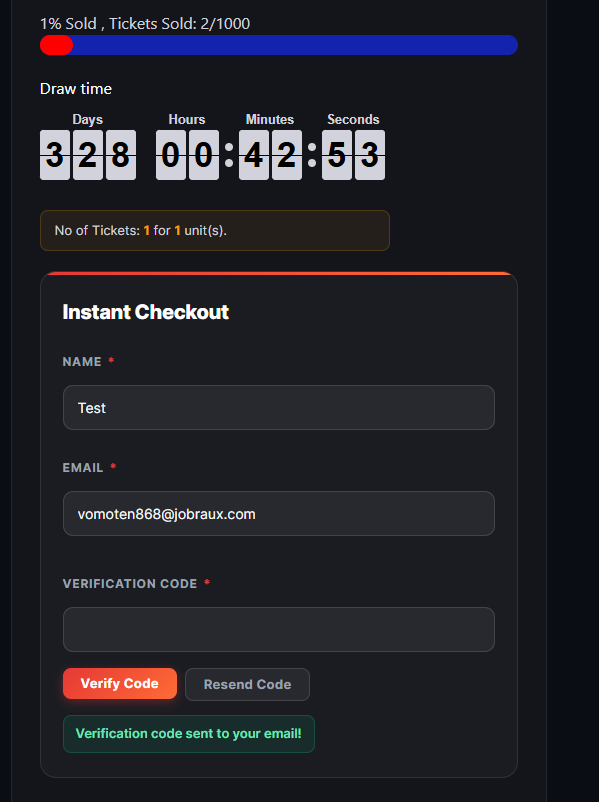
- Optionally enable Email verification — Sends a 6-digit code to verify the email is real before assigning tickets.
- Add product image, description, and publish.
Part B — Configure Email Verification (Optional but Recommended)
Email verification prevents fake entries and ensures you collect real email addresses.
- On the product, check Email verification under Instant Checkout options.
- When a visitor submits the form, they receive a 6-digit code by email.
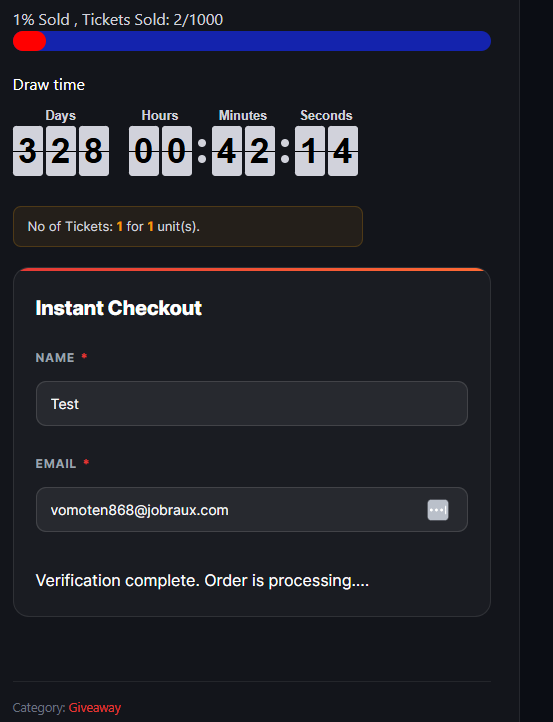
- They enter the code on the same page to confirm their entry.
- Only after verification are tickets assigned.
- Codes expire after 15 minutes — visitor can request a new code.
Part C — Customize Instant Checkout Messages (Optional)
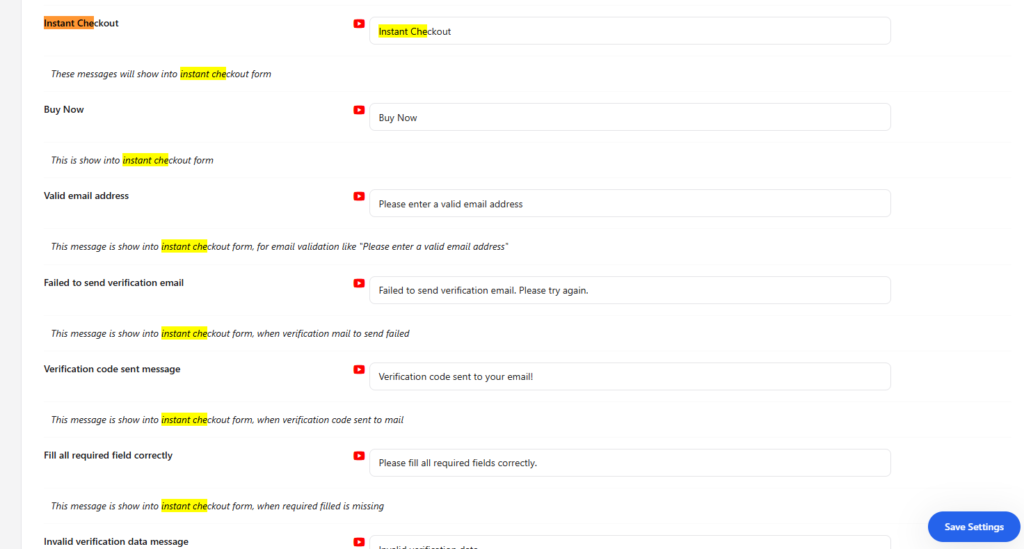
Go to Giveaway Lottery settings to customize text shown during the free entry flow (success messages, verification errors, etc.). These appear in the Instant Checkout / Free Campaign related settings.
Part D — What Happens When Someone Enters
- Visitor opens your free campaign product page.
- Instead of “Add to Cart,” they see the entry form.
- They fill in Name, Email (and Phone if enabled).
- If email verification is on → they verify their email with the 6-digit code.
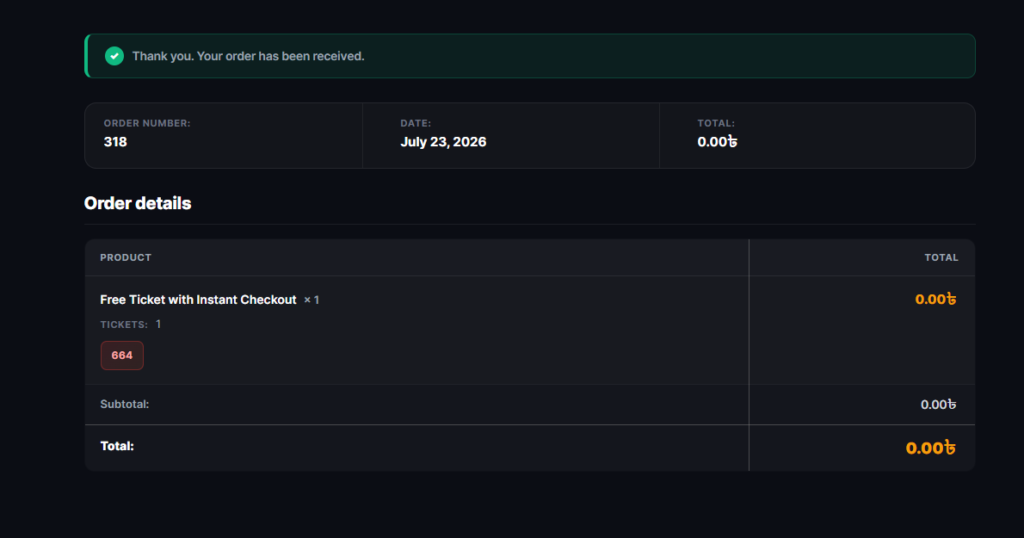
- Tickets are assigned instantly (no order, no payment).
- They receive a confirmation and ticket email (if email sending is enabled in General settings).
- They are entered into the draw on the scheduled draw date.

Free Campaign Best Practices
- Set a clear close date to create urgency (“Entries close July 31!”)
- Enable countdown timer so visitors see time remaining
- Use email verification to build a quality email list
- Limit entries to one per email (use Unique email setting if combining with Lucky Wheel rules)
- Promote the free campaign page link on social media, email newsletters, and ads
Important: Instant Checkout only works when the product price is $0 and “Instant Checkout” is enabled on that product. For paid giveaways, customers use the normal WooCommerce checkout flow.