
Lucky Wheel
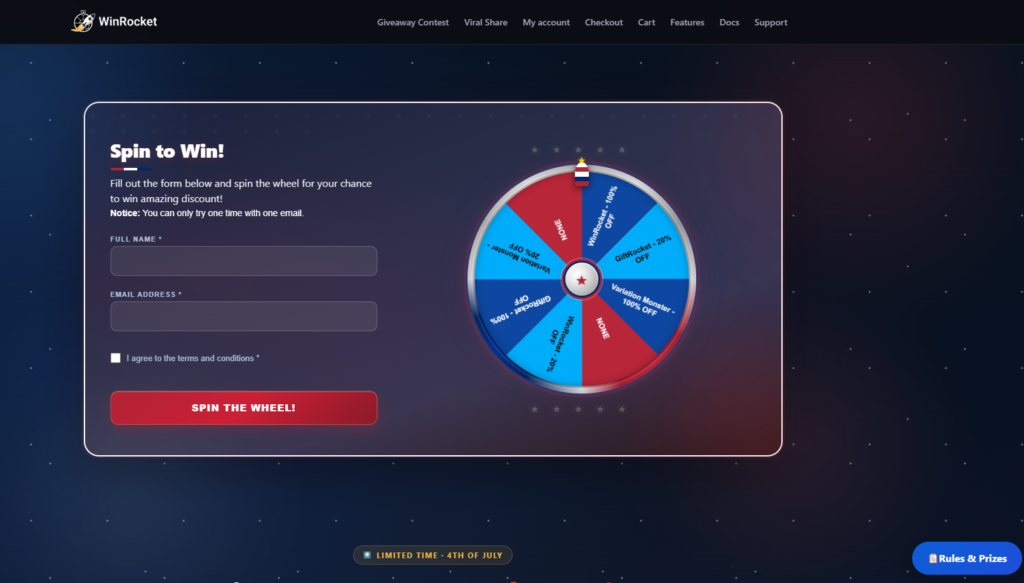
The Lucky Wheel is an interactive spin-to-win feature. Visitors enter their details, spin the wheel, and can win coupons, free tickets, reward points, or other prizes. It is great for boosting engagement on cart, checkout, or any page.
What You Can Win on the Wheel
| Prize Type | Available In | Description |
|---|---|---|
| None | Free & Pro | “Try again” slice — no prize |
| New Coupon | Free & Pro | Creates a WooCommerce coupon (percent or fixed discount) |
| Existing Coupon | Free & Pro | Awards an existing coupon code |
| TeraWallet | Pro | Adds credit to TeraWallet (requires TeraWallet plugin) |
| Ticket / Entries | Pro | Free giveaway tickets for a specific product |
| Reward Points | Pro | Points added to customer’s reward balance |
| Products | Pro | Free or discounted WooCommerce product |
| Others | Pro | Custom prize with your own message |
Step-by-Step: Create Your Lucky Wheel
Part A — Configure Wheel Slices (Prizes)
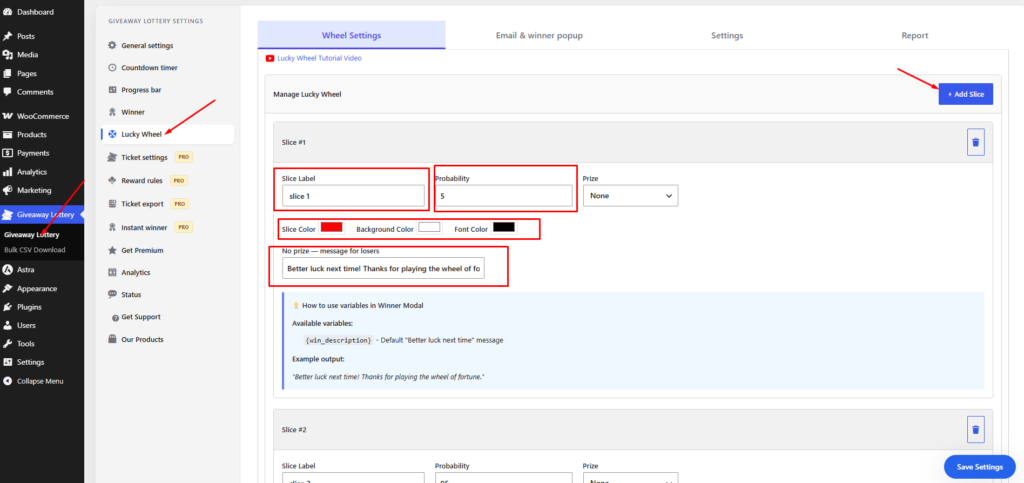
- Go to Giveaway Lottery in WordPress admin.
- Click the Lucky Wheel tab.
- Open the Wheel Settings sub-tab.
- You will see a visual wheel editor. Each colored section is a “slice.”
- Click on a slice to edit it. For each slice set:
- Slice label — Text shown on the wheel (e.g., “10% OFF”, “Free Ticket”, “Try Again”)
- Prize type — Choose from the prize types listed above
- Probability / weight — Higher number = more likely to win. Example: “Try Again” = 50, “10% Coupon” = 10, “Free Ticket” = 5
- Slice color — Background color of that section
- Winning description — Message shown to the winner in the popup
- Add or remove slices as needed. A typical wheel has 6–12 slices.
- Click Save Changes.
Part B — Set Up the Entry Form
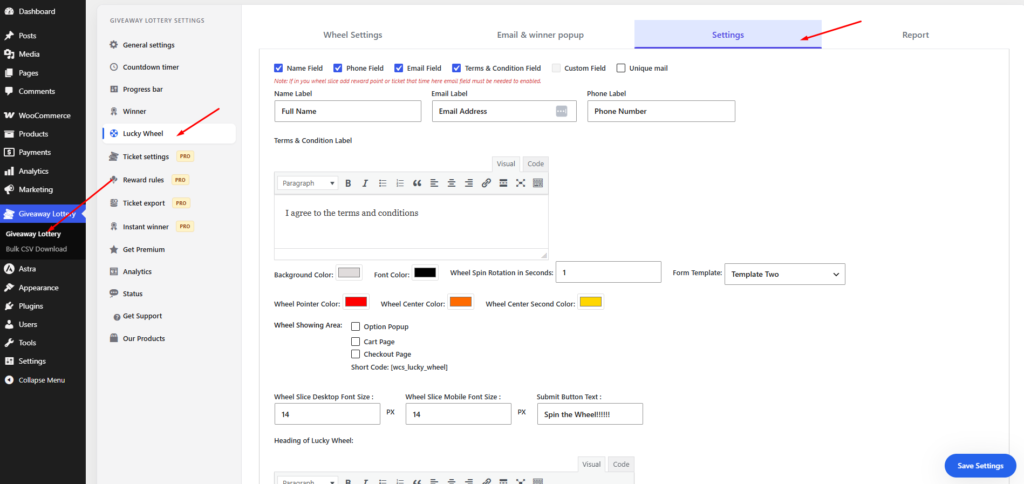
- Still in the Lucky Wheel tab, open the Settings sub-tab.
- Configure which fields customers must fill before spinning:
- Name — Show/hide and make required
- Email — Usually required
- Phone — Optional
- Terms & Conditions — Checkbox with your terms text
- Unique email — Prevent the same email from spinning twice
- Custom Field PRO — Add an extra form field
- Customize wheel appearance: center logo, spin button text, wheel size.
- Save changes.
Part C — Choose Where the Wheel Appears
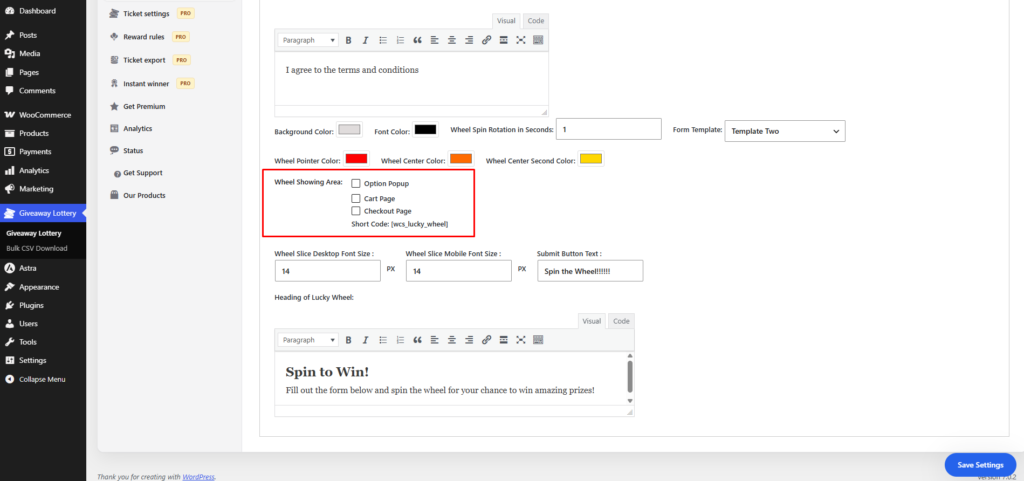
In the Settings sub-tab, enable the wheel on:
- Cart page — Shows wheel when customer views cart
- Checkout page — Shows during checkout
- Thank you page — After order completion (choose position: Popup, Before content, or After content) – Required Lucky wheel addons.
- Any page via shortcode — Add
[wcs_lucky_wheel]to any page or post
Part D — Set Up Winner Emails & Popup
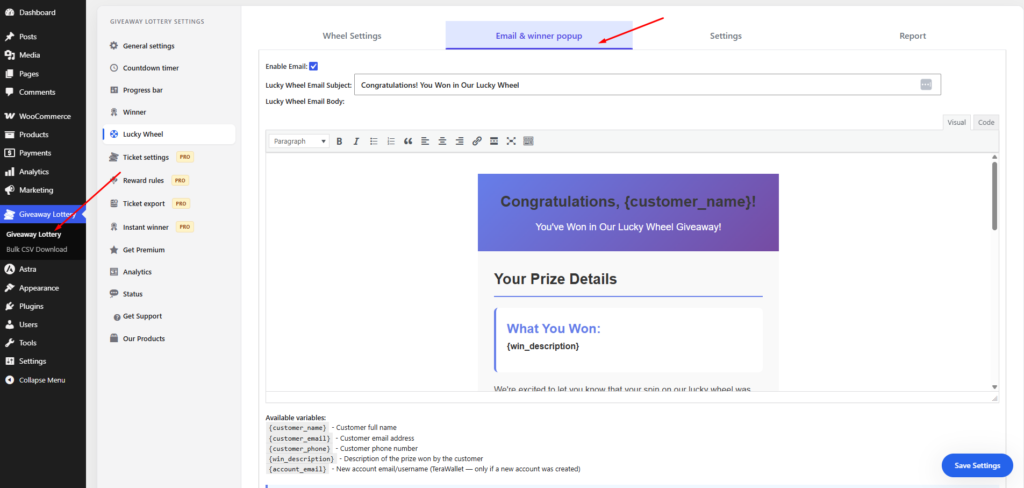
- Open the Email & winner popup sub-tab.
- Customize the popup that appears after spinning (winner message, coupon display, button text).
- Enable email notification to the winner (optional).
- PRO Enable admin email when someone wins.
- PRO Set max win limit per user and “win after N spins” rules.
- PRO Configure non-winner email/modal for users who didn’t win.
- Save changes.
Part E — Embed the Wheel on a Custom Page
- Go to Pages → Add New.
- Give the page a title (e.g., “Spin & Win!”).
- Add a Shortcode block and enter:
[wcs_lucky_wheel] - Publish the page and share the link in emails, social media, or banners.
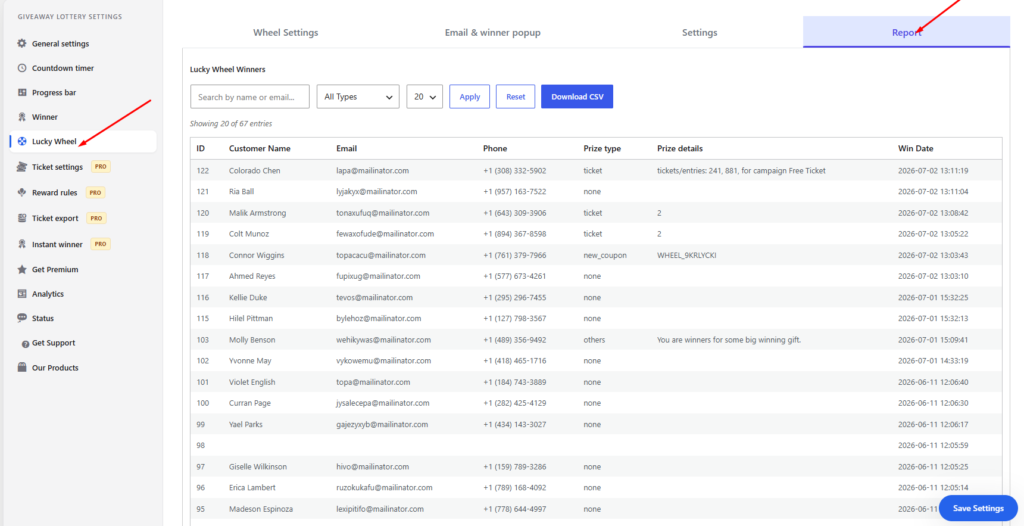
View Lucky Wheel Reports
Go to Lucky Wheel → Report sub-tab to see who spun, what they won, and when.
Pro tip: Give “Try Again” or “None” slices the highest probability so real prizes feel special. A common split is 40% no prize, 30% small coupon, 20% medium coupon, 10% big prize.