Standard Giveaway (Raffle)
A standard giveaway is the most common campaign type. Customers buy tickets, receive random ticket numbers by email, and a winner is drawn on the scheduled date.
How It Works (Simple Explanation)
- You create a WooCommerce product and mark it as a giveaway.
- Customers buy tickets during the selling period.
- Once their order is confirmed, customers receive their ticket number(s) by email. Their ticket numbers are also displayed on the Thank You page and the Order Details page.
- On the scheduled draw date, the system automatically selects a random winner if Auto Draw is enabled in the product’s Giveaway Settings.
- The winner is revealed on your Winner Reveal page with a countdown and fireworks animation.
Product Settings Explained
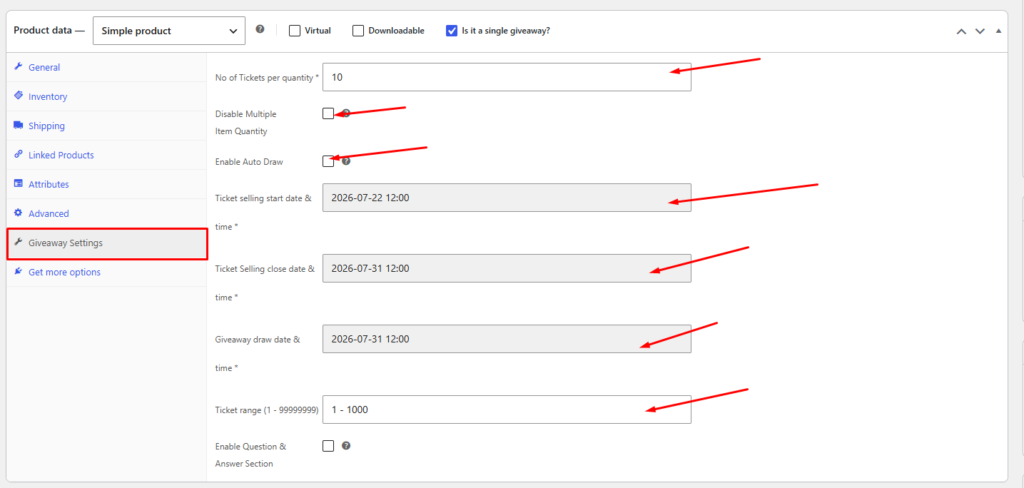
Go to Products → Edit your giveaway product → Giveaway Settings tab.
| Setting | What It Does |
|---|---|
| No of Tickets per quantity | Number of raffle tickets given for each item added to cart. Example: price $5, quantity 2, tickets per qty = 3 → customer gets 6 tickets. |
| Disable Multiple Item Quantity | Forces quantity to always be 1 — useful when each person should only enter once. |
| Enable Auto Draw | Automatically selects the winner when the draw date passes (no manual action needed). |
| Ticket selling start date & time | Sales cannot begin before this date. |
| Ticket Selling close date & time | Sales stop automatically after this date. |
| Giveaway draw date & time | When the winner draw happens. |
| Ticket range | The number pool for tickets (e.g., 1-50000). Sold tickets are picked randomly from available numbers in this range. |
Countdown Timer FREE & PRO
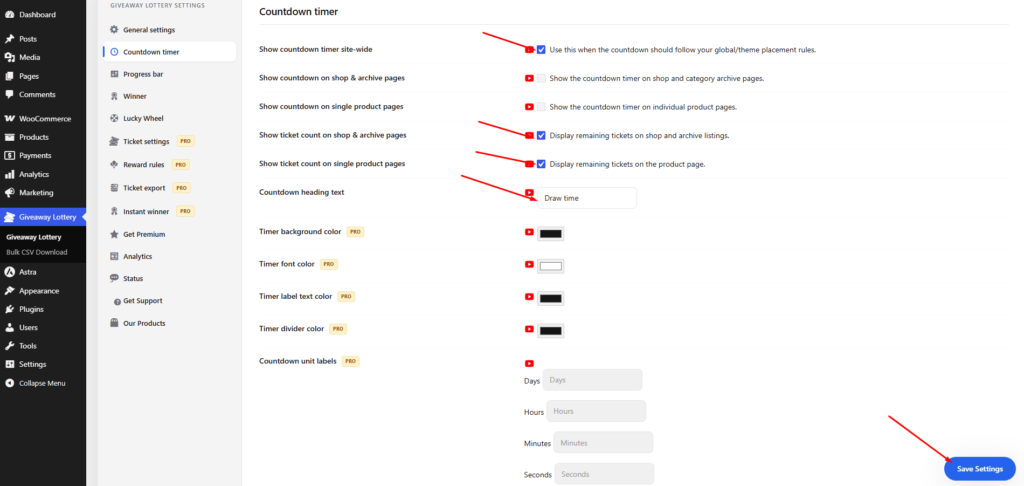
Go to Giveaway Lottery → Countdown timer tab.
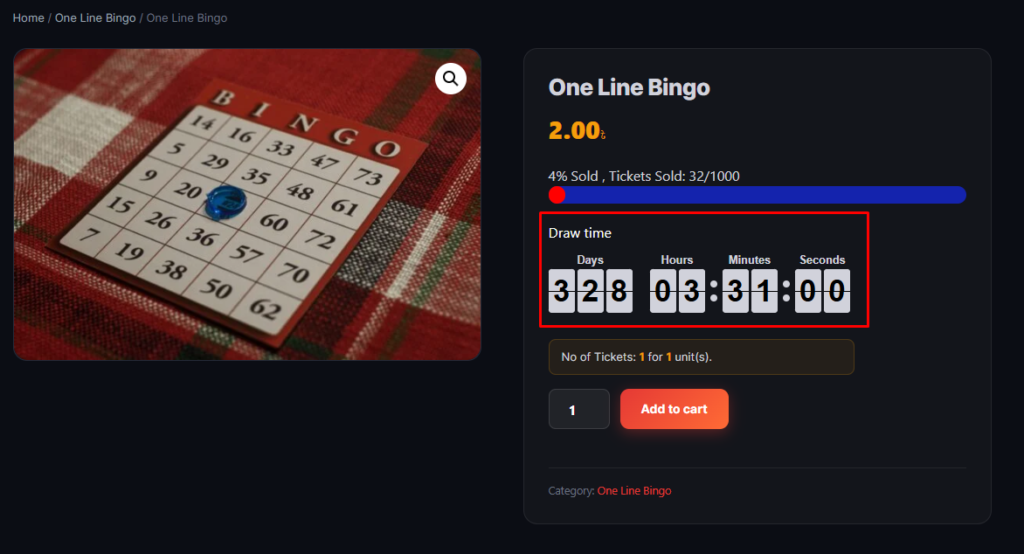
- Show countdown on shop/archive pages and single product pages
- Display ticket count per quantity
- Customize heading text (e.g., “Sale ends in:”)
- PRO Custom colors for timer text, background, and borders
Progress Bar FREE & PRO
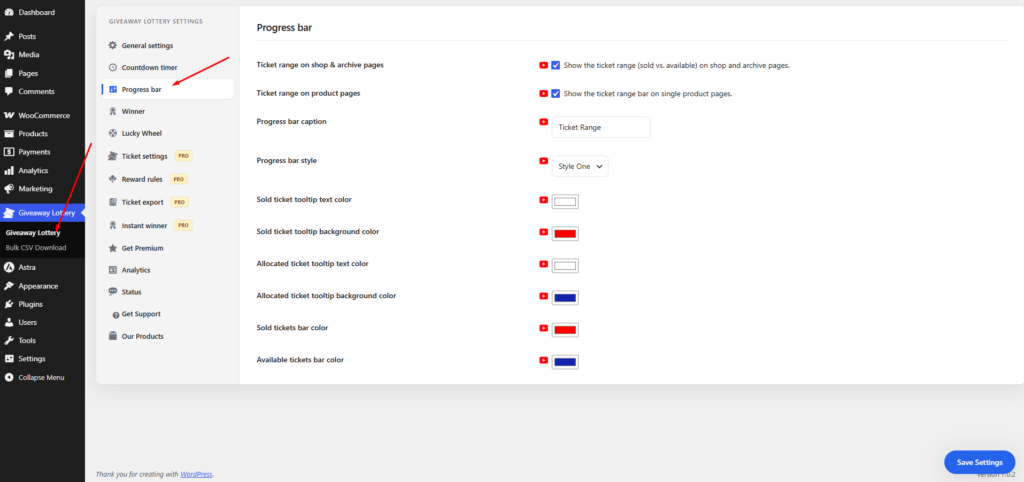
Go to Giveaway Lottery → Progress bar tab.
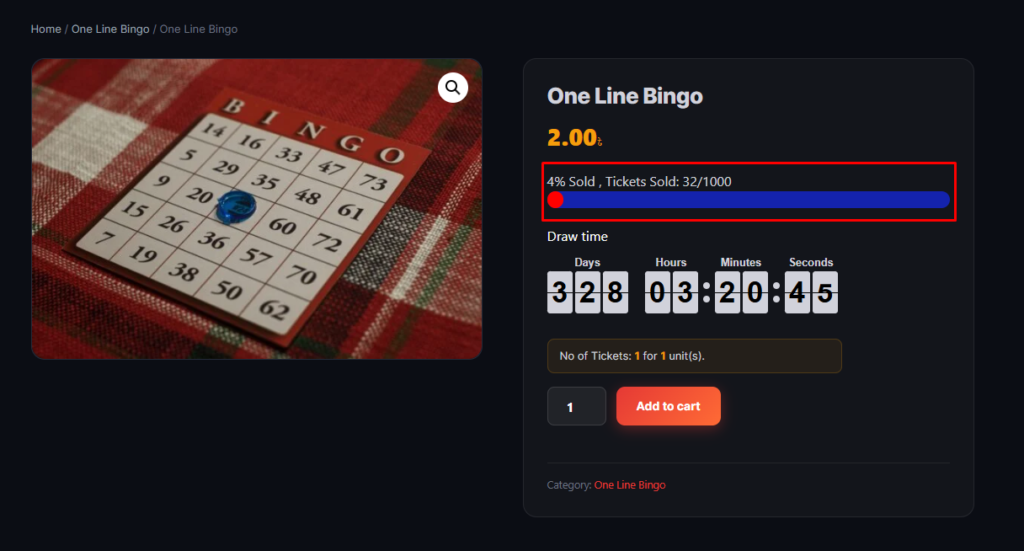
The progress bar visually shows how many tickets have been sold vs. the total available. This creates urgency and social proof (“80% sold!”).
- Enable on shop page and/or single product page
- Choose tooltip style (One, Two, or Three PRO- this is not a tooltip; it shows as text format)
- Customize bar colors and caption text
Managing Tickets from Admin
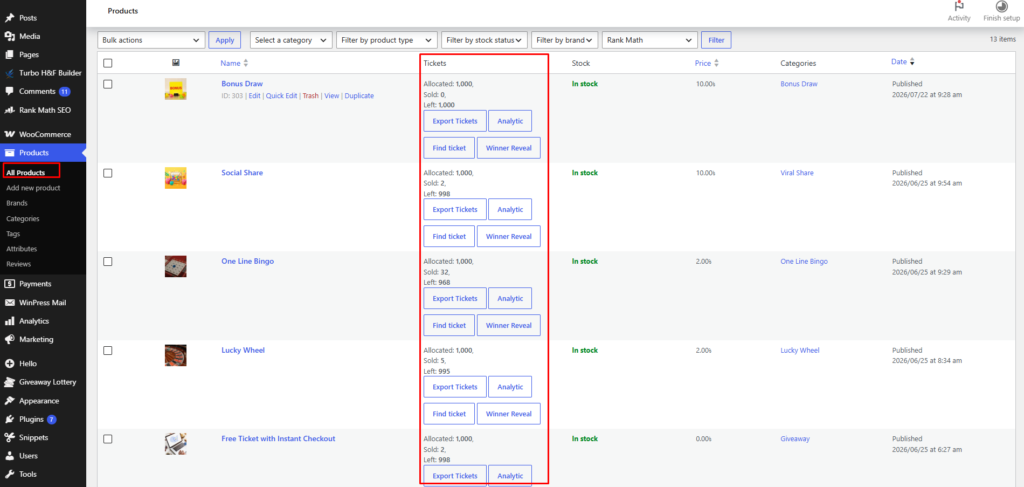
Go to Products list — each giveaway product shows a Tickets column with Allocated / Sold / Left counts.
- Export — Download tickets as CSV PRO
- Analytic — View sales and participation data
- Find Ticket — Look up who owns a specific ticket number
- Winner Reveal — Go directly to the draw page for this product