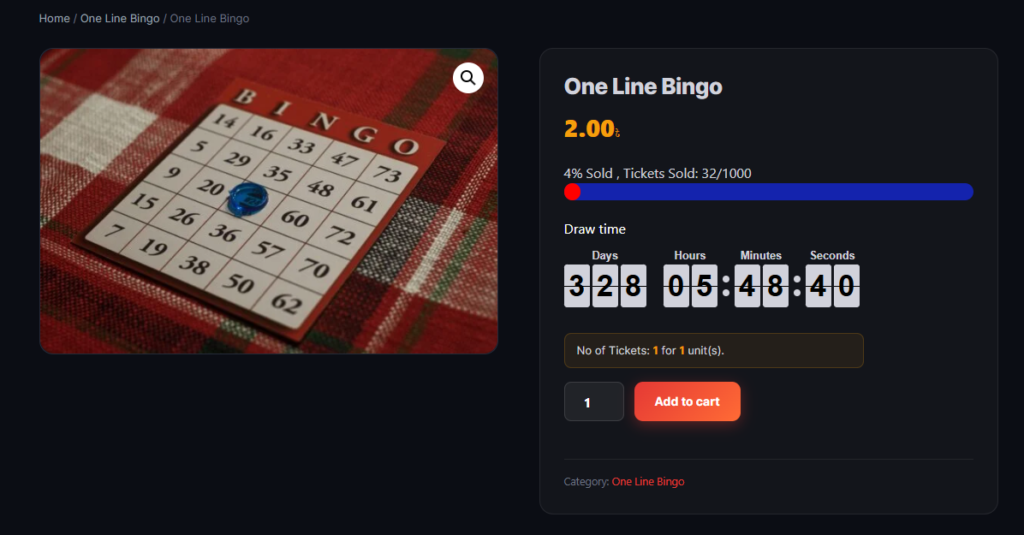

Getting Started
This section walks you through your very first giveaway from zero. By the end, you will have a working raffle product that sells tickets and sends them to customers by email.
Step 1 — Install WooCommerce
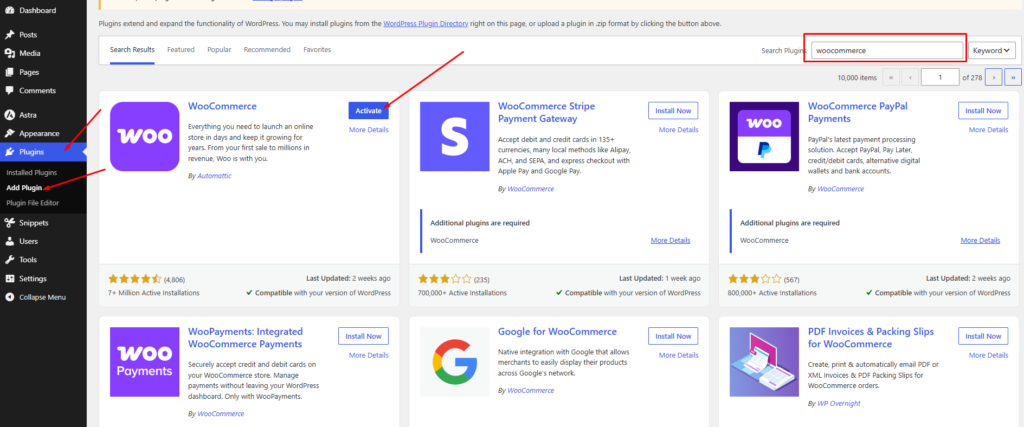
- Log in to your WordPress admin dashboard.
- Go to Plugins → Add New.
- Search for WooCommerce, click Install Now, then Activate.
- Complete the WooCommerce setup wizard (store address, currency, payment methods).
Step 2 — Install Giveaway Lottery (Free Plugin)
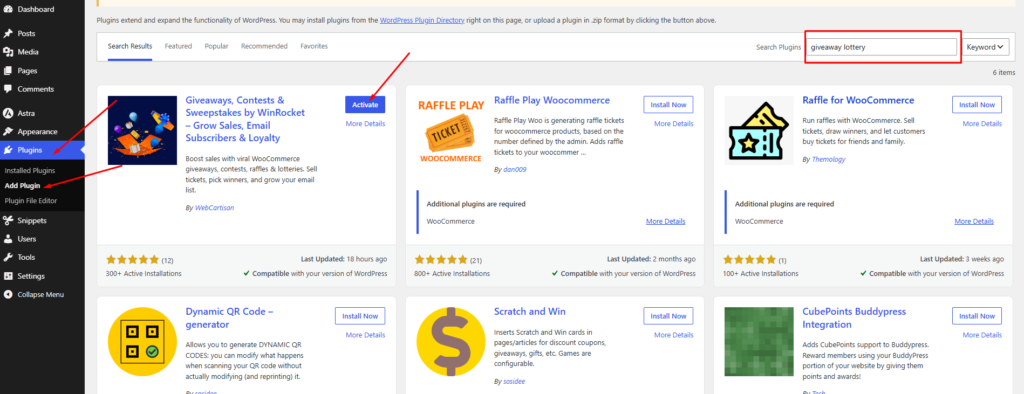
- Go to Plugins → Add New.
- Search for “WinRocket Giveaway Lottery” or “Giveaway Lottery for WooCommerce”.
- Click Install Now, then Activate.
- After activation, you will see a new menu called Giveaway Lottery in your WordPress sidebar.
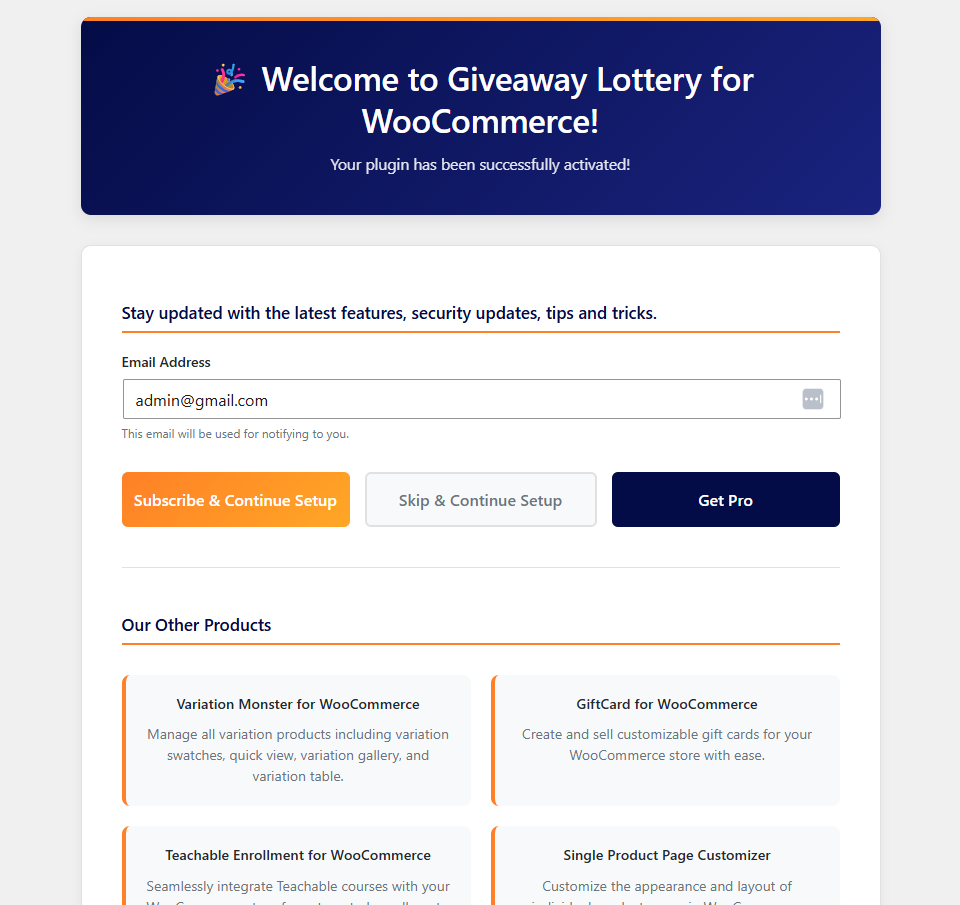
Step 3 — Visit the Welcome Page
Click Giveaway Lottery → Welcome in the admin menu. This page gives you a quick overview of features and links to settings.
Step 4 — Configure Basic Global Settings
Before creating your first giveaway, set up a few important global options.
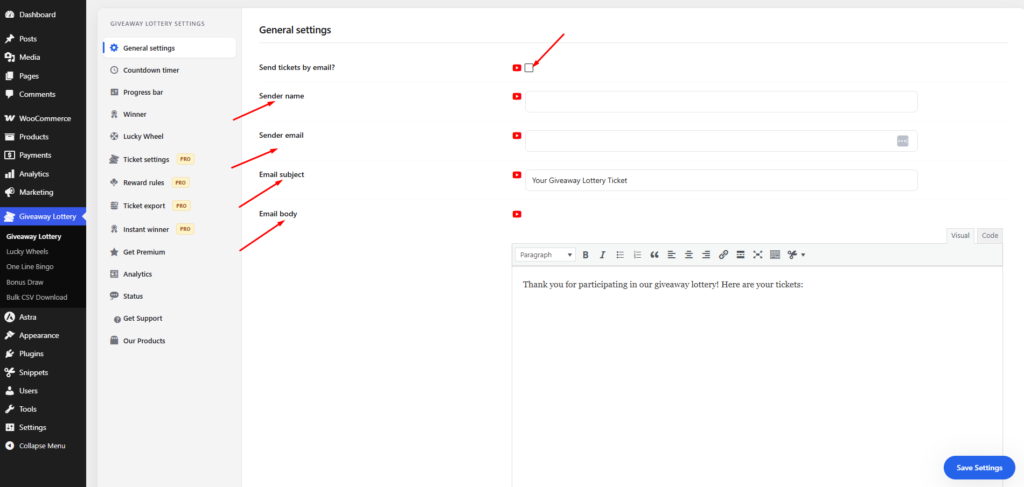
- Go to Giveaway Lottery (main settings page).
- Open the General settings tab.
- Enable Send tickets by email so customers receive their ticket numbers automatically.
- Set your Sender Name and Sender Email (the “From” name and email address used for ticket emails). This step is optional. If left blank, the plugin will automatically use your WordPress Site Title as the sender name and the Administrator Email Address from Settings → General as the sender email.
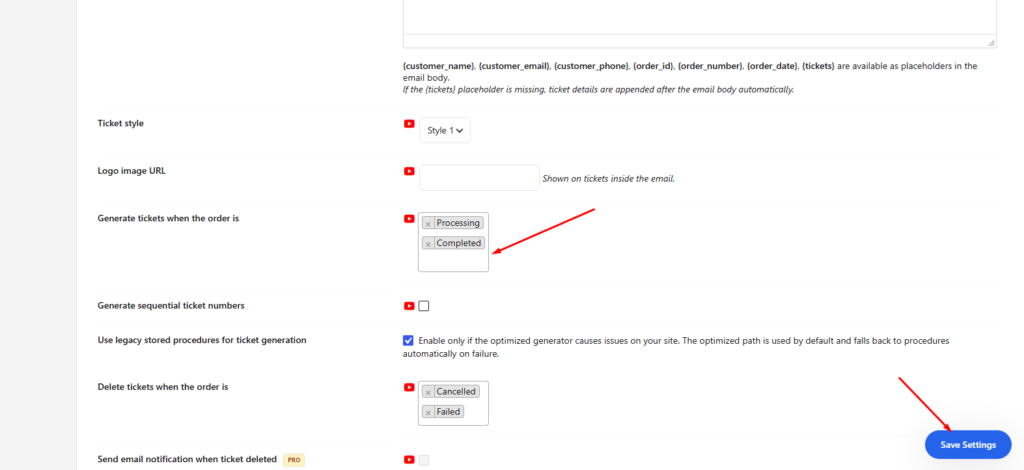
- Customize the Email subject and Email body. Use the placeholder
{tickets}where you want ticket numbers to appear in the email. - Under Generate tickets when order status is, choose when tickets are created (usually Processing or Completed).
- Click Save Settings.
Step 5 — Create Your First Giveaway Product
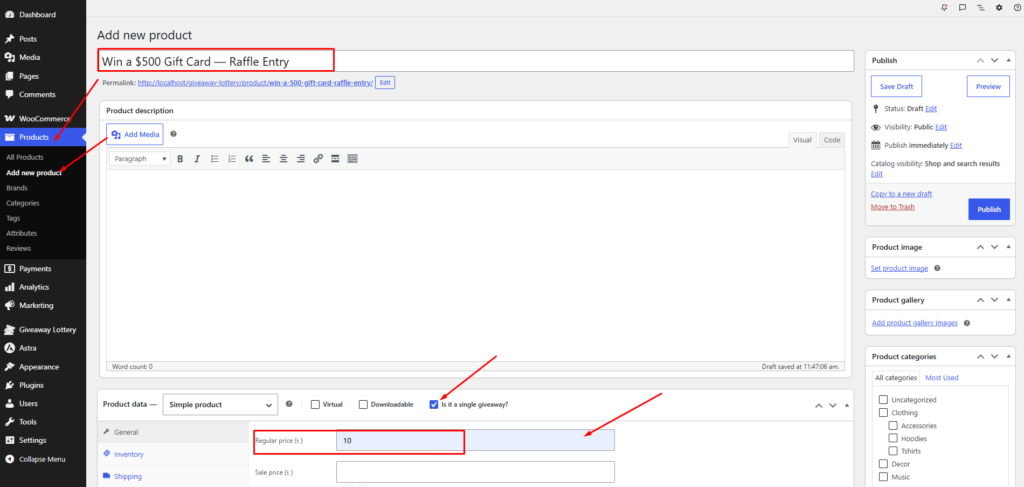
- Go to Products → Add New.
- Enter a product name (e.g., “Win a $500 Gift Card — Raffle Entry”).
- Set a Regular price (this is the price per ticket entry).
- In the Product data panel, check the box “Is it a single giveaway?”. This tells WooCommerce this product is a raffle/giveaway item.
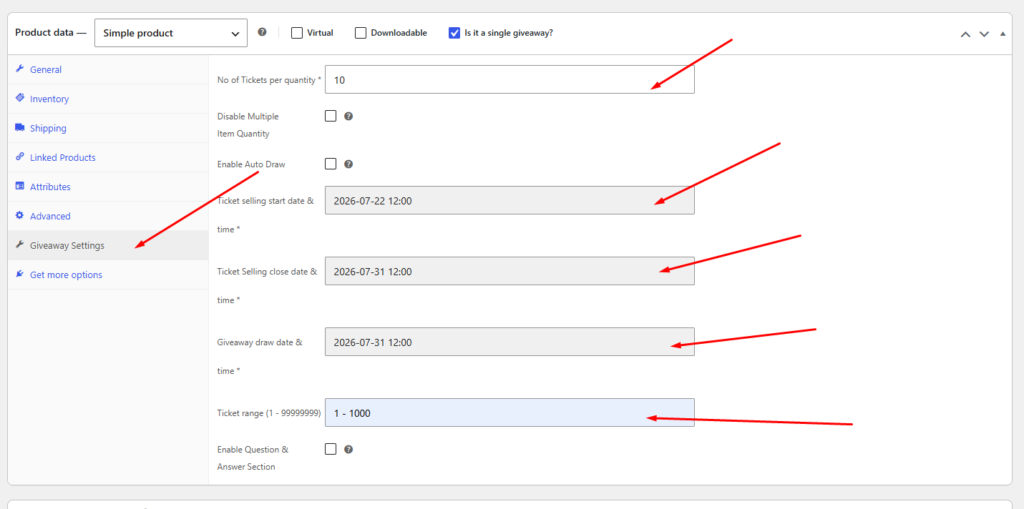
- Click the Giveaway Settings tab (appears after checking the giveaway box).
- Fill in the required fields:
- No of Tickets per quantity — How many tickets the customer gets per item purchased (e.g., enter
1for one ticket per purchase). - Ticket selling start date & time — When sales open (e.g.,
2026-07-01 09:00). - Ticket Selling close date & time — When sales stop.
- Giveaway draw date & time — When the winner will be drawn.
- Ticket range — The pool of ticket numbers (e.g.,
1-10000means tickets numbered 1 through 10,000).
- No of Tickets per quantity — How many tickets the customer gets per item purchased (e.g., enter
- Add a product image and description, then click Publish.
Step 6 — Set Up the Winner Reveal Page
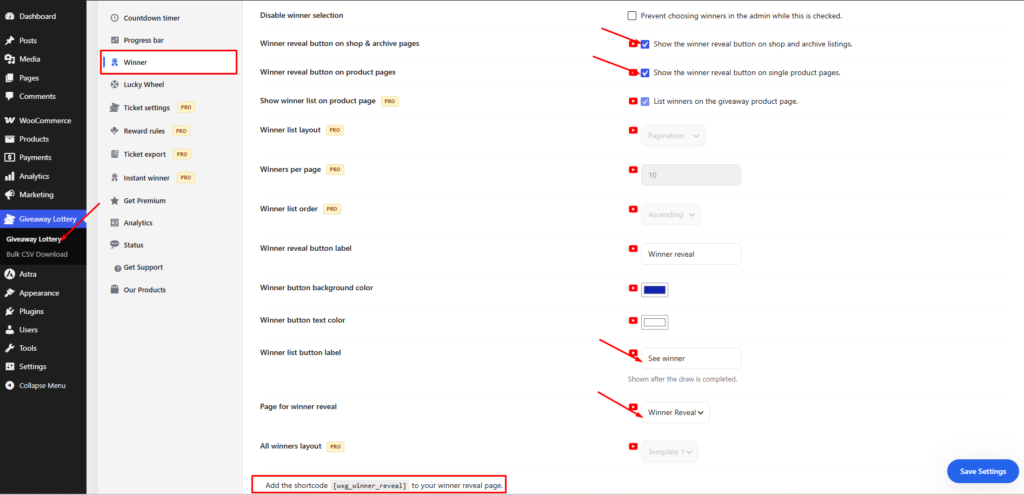
- Go to Giveaway Lottery → Winner tab.
- Select or create a Winner Reveal Page. The plugin can auto-create a page called “Winner Reveal” with the shortcode
[wxg_winner_reveal]. - Select Page for winner reveal
- Enable the Show Winner Reveal button on single product and/or shop pages so customers can visit the draw page.
- 4.1 Select “Winner reveal button on shop & archive pages” for shop page.
- 4.2 Select “Winner reveal button on product pages” for product page.
- Customize the button text if you like (e.g., “Watch the Draw”, “Lucky Draw” or “See winner”).
- Save changes.
Step 7 — Test Your Giveaway
- Visit your store’s front end and open the giveaway product page.
- You should see a countdown timer and progress bar (if enabled in settings).
- Add the product to cart and complete a test order.
- Check that the customer receives a ticket email with their ticket number(s).
- After the draw date, visit the Winner Reveal page to see the fireworks winner announcement.
Tip: Use WooCommerce test mode or a small real payment to verify the full flow before launching your campaign publicly.